The LOXONE Experience TV
Bring your showroom to life and showcase LOXONE in a completely new, interactive way.

Free & interactive
Your digital sales representative, who will excite and win over your customers.

Differentiation
Offer your customers an experience they’ll never forget and stand out from the competition.

Intuitive
The system showcases its capabilities and gives your customers in-depth insights into the LOXONE world.
What is LOXONE Experience TV?
Videos produced by LOXONE that bring the space around you to life. During the tours, LOXONE features are activated directly in your show home at specific points in the video. Lighting and shading adjust automatically as their functions are explained in the video. This allows prospective buyers to experience LOXONE first-hand.
All you need is a showroom, the free LOXONE Experience TV app and a selection of recommended products to ensure the best possible customer experience. Options for commercial use, specific applications and more are also available.
In addition, a browser-based version is also available at www.loxone.tv
Download the app now
What our customers say
QUOTE
“A brilliant place where, through a fantastic demonstration, you can understand what a LOXONE smart home is and what benefits it offers.”
QUOTE
“The tour gave us a brilliant insight into the world of LOXONE. We were able to test and experience all the components.”
QUOTE
“A very informative tour. Even for us as keen LOXONE users. We’ve gained lots of inspiration for additions and for integrating other devices.”
Products for your Experience TV
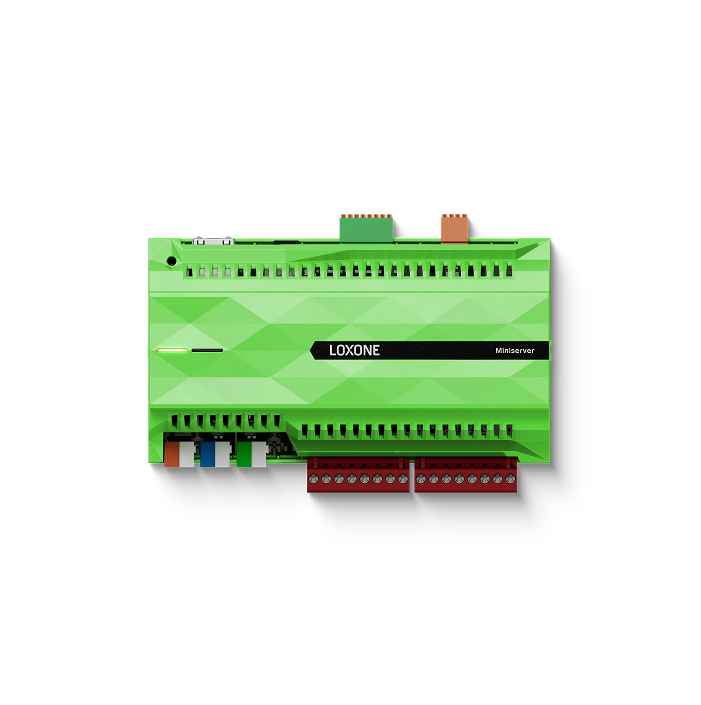
Miniserver
The Miniserver is at the heart of LOXONE Experience TV. It controls lighting, shading, audio and much more.

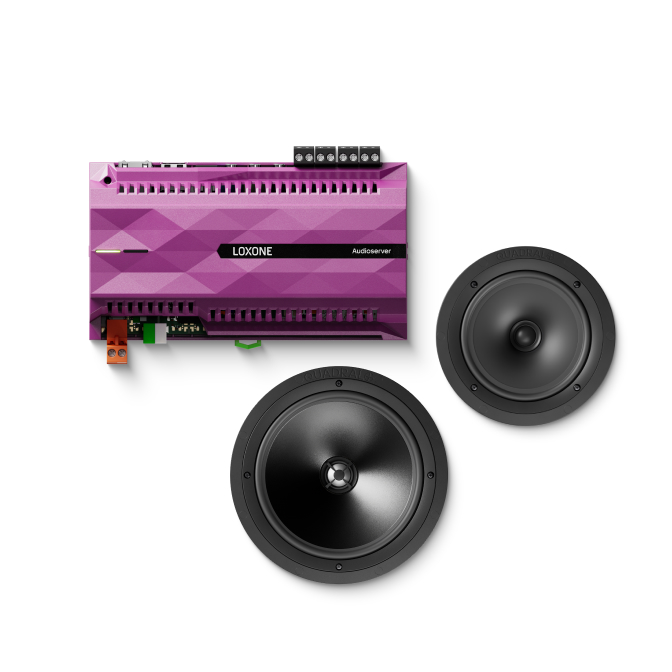
Audioserver and Speakers
The Audioserver enhances your setup with smart multiroom audio.
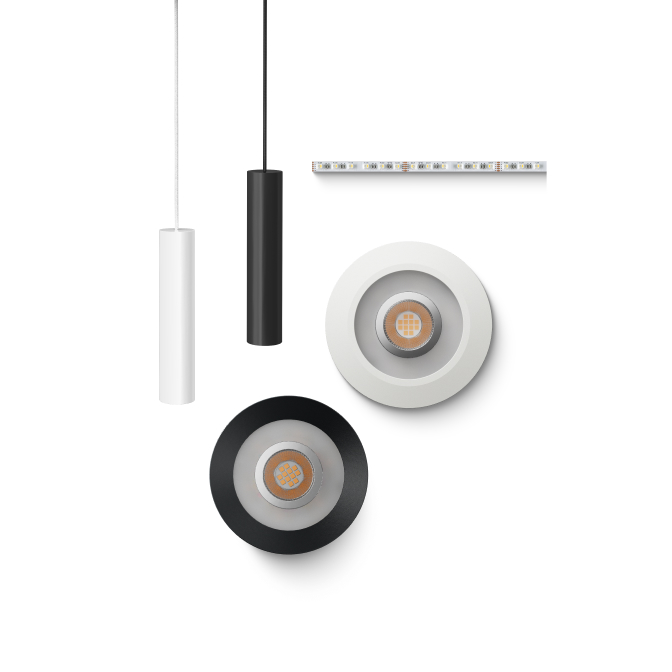
Lighting with three lighting circuits
The Experience TV tours impressively demonstrate how light can change the atmosphere.
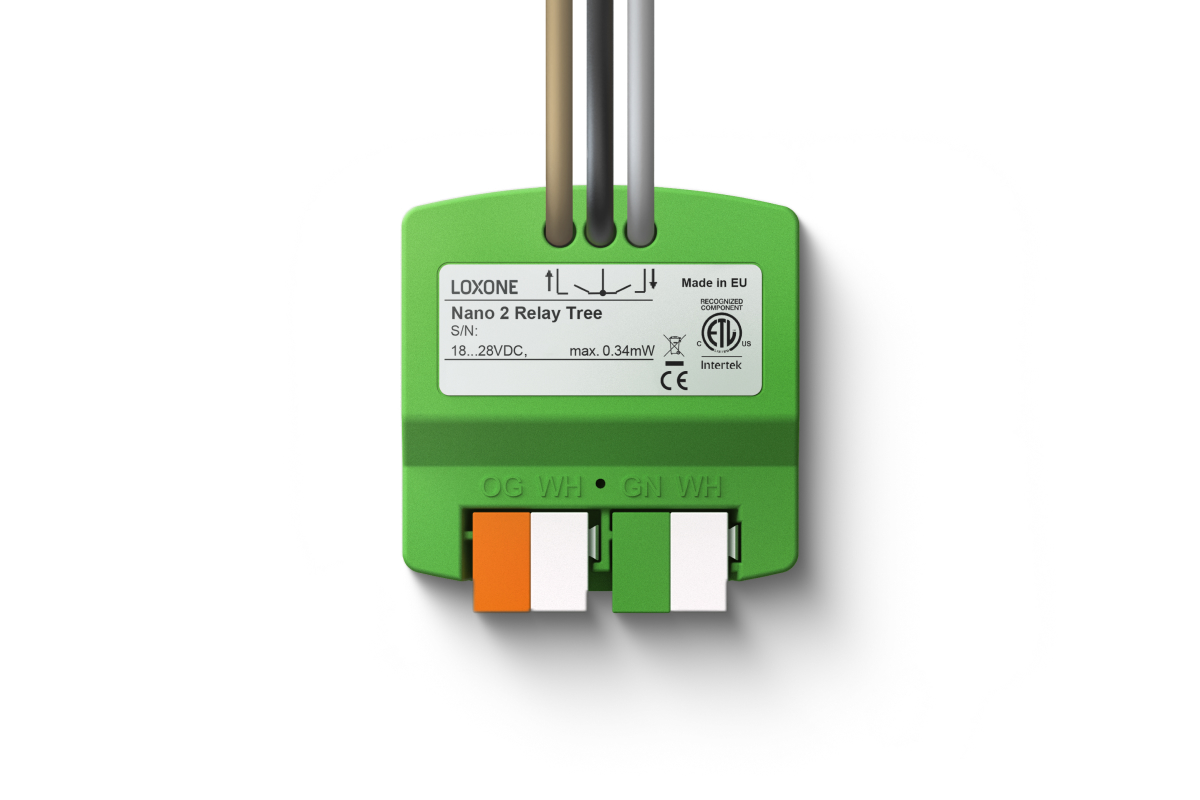
Shading Control
During the tour, the shading also reacts dynamically to the video with Nano 2 Relay Tree.
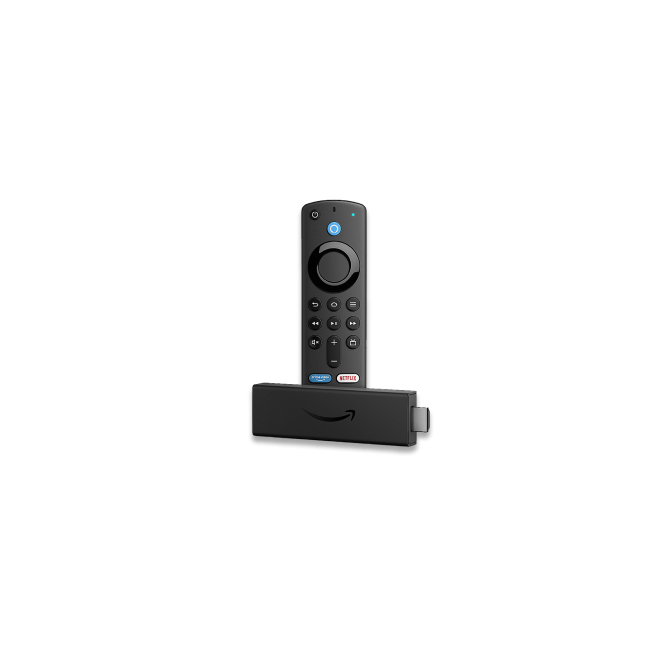
Android & Amazon TV device
The free app is available on the Google Play Store and the Amazon App Store, and runs on a wide range of devices, such as the Fire TV Stick 4K, Xiaomi TV boxes and many more.
Implement in 3 steps

Step 1
Download the app and follow the automated guide
Connect your TV and download the free LOXONE Experience TV app. When you launch it for the first time, a setup guide will walk you through the basic setup.

Step 2
Create a virtual text input and connect it to the blocks
In LOXONE Config, create a virtual text input and connect it to the API Connector. This ensures that the app’s commands are automatically passed on to the relevant blocks.

Step 3
Choose the videos you want and bring your space to life
Start the tour, check the workflows and, if necessary, adjust the lighting scenes, shading or audio – to ensure a perfect customer experience.
Tips & Tricks
How do I set up LOXONE Experience TV?
When you launch the app for the first time, a set-up wizard will guide you through the configuration of the Experience TV. Of course, you can also configure the system manually. LOXONE Experience TV uses the following function blocks, which are connected to the API Connector:
- Lighting control
- Automatic shading
- Integrated automatic shading or centralised shading
- Audioplayer
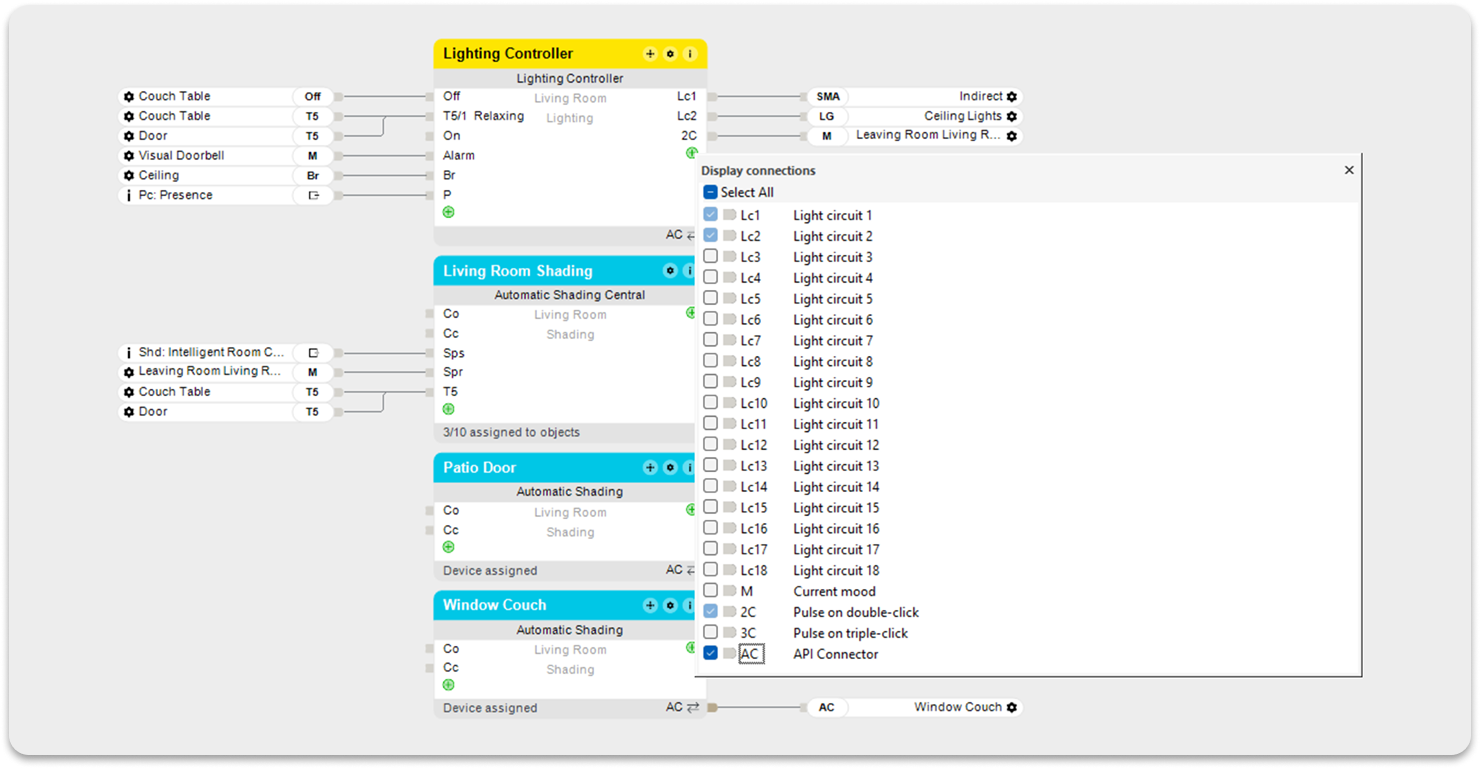
How do I use the virtual text inbox?
Experience TV sends the command via the network to the virtual text input, which you create in LOXONE Config and then connect to the modules’ API connector. Name the virtual text input after the room you are using, for example ‘Showroom’.
Tip: Make sure your virtual text input has a unique name and that no other function block or room favourite you are using has the same name.
Now simply drag the virtual text input onto any other block on the API Connector for which you have installed products. That’s it! The virtual text input automatically receives the relevant command from the LOXONE Experience TV app and forwards it to the relevant blocks in the configuration.
Important: Use only one type of module and do not mix them. For shading, for example, use either the ‘Automatic Shading’ module OR the ‘Integrated Automatic Shading’ module OR the ‘Centralised Automatic Shading’ module.
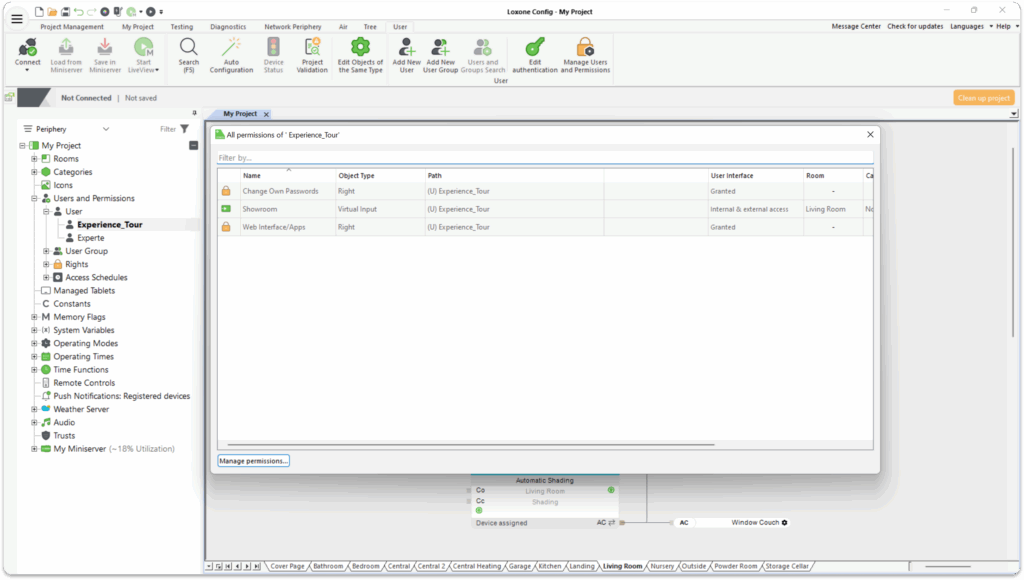
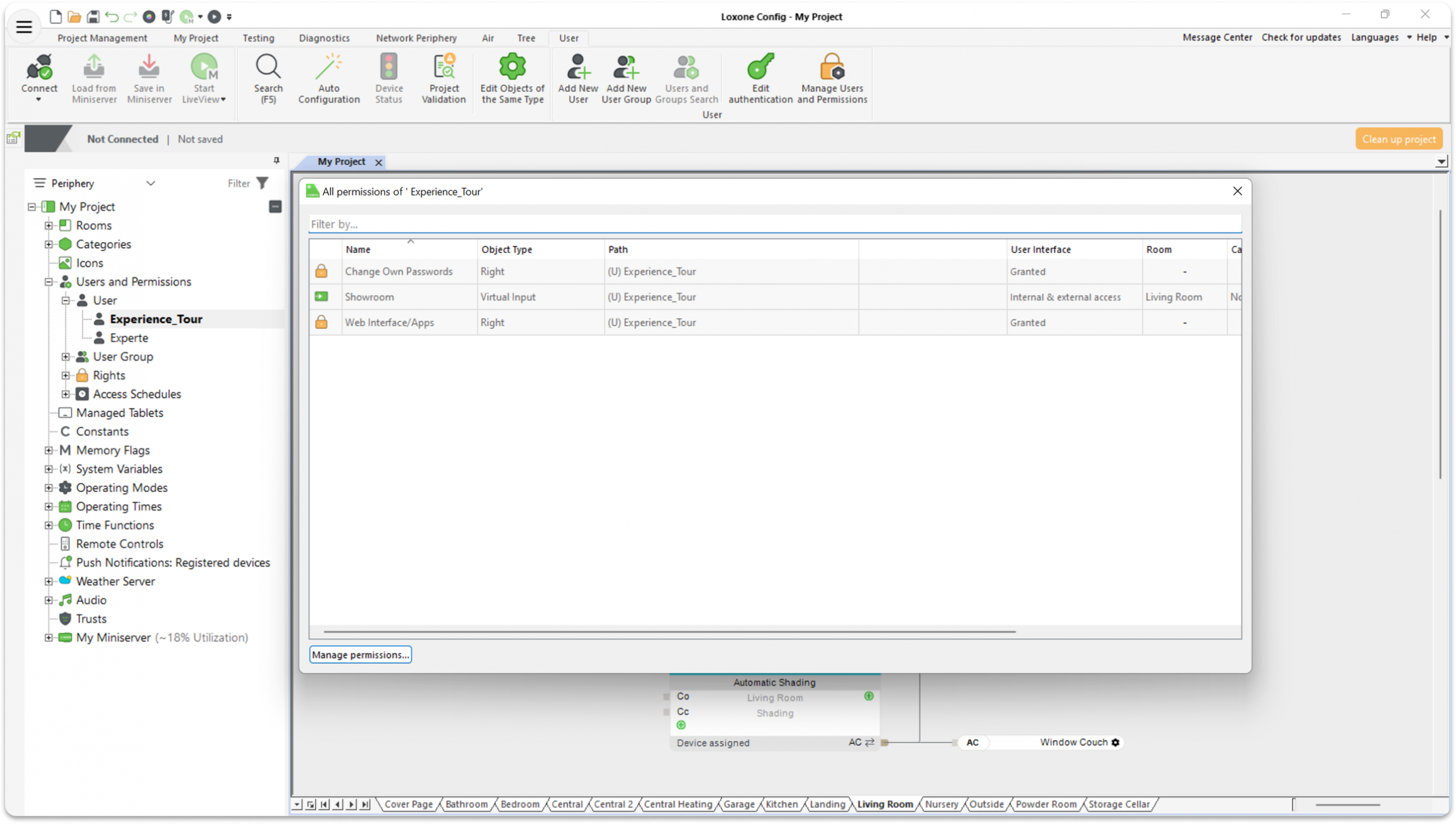
What rights should new users have?
Now create a new user with at least the following permissions:
- Website/App
- Right to internal and external access to the virtual inbox
How do I create the right lighting atmosphere for Experience TV?
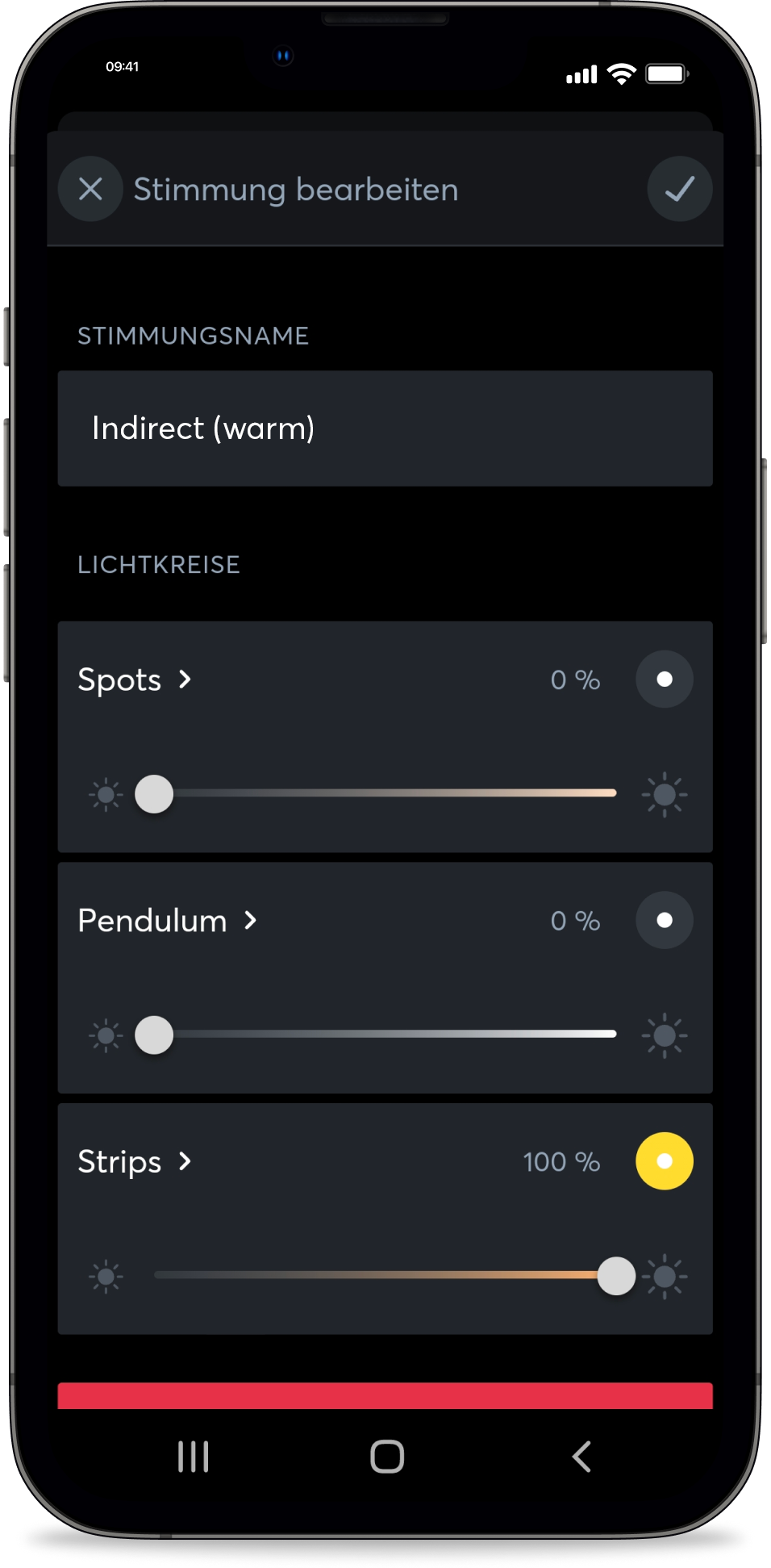
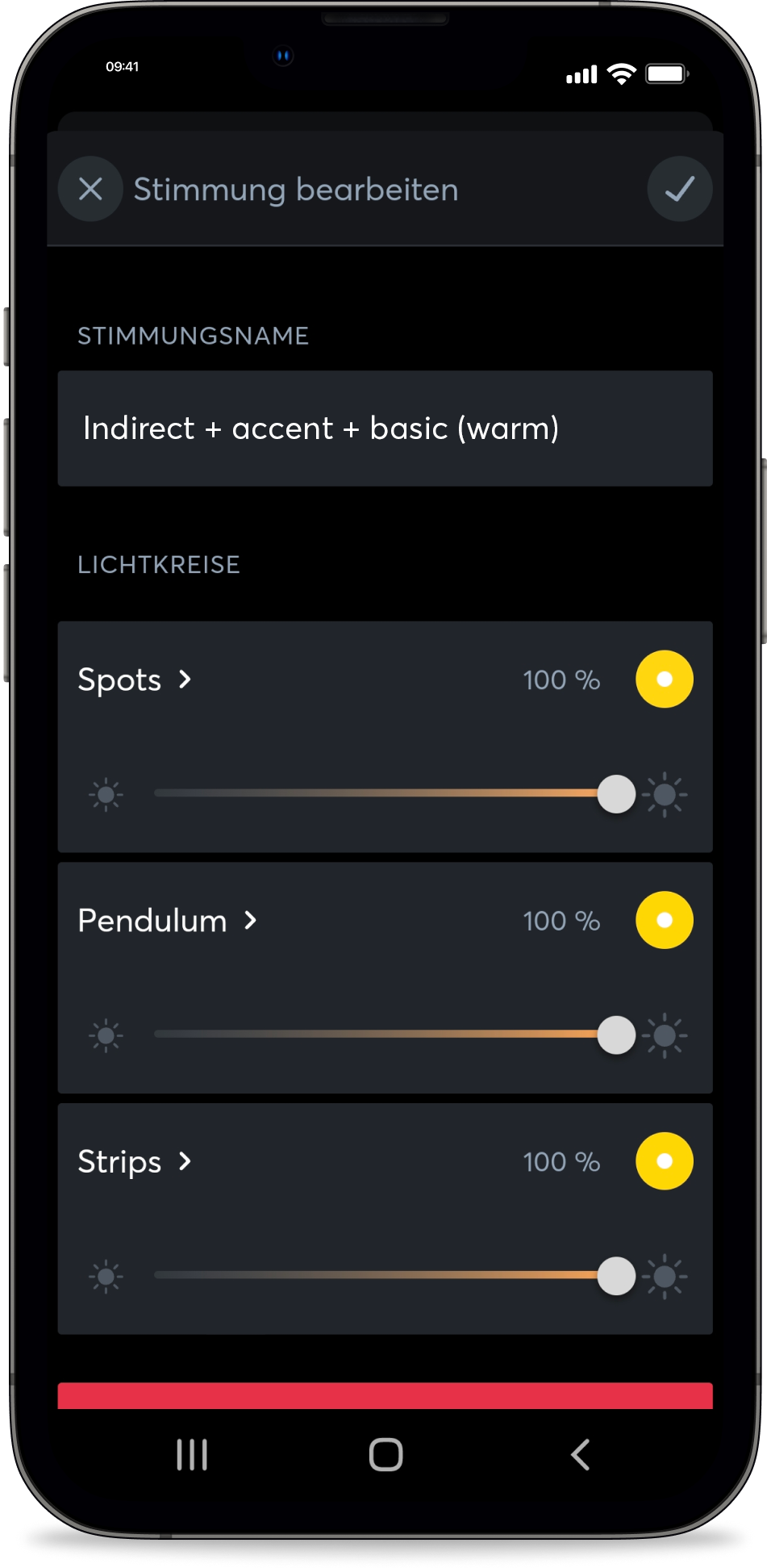
For LOXONE Experience TV, various lighting scenes with different IDs must be created in LOXONE Config. The ID is required to ensure that the correct lighting scene is activated. We recommend fine-tuning the lighting scenes in the free LOXONE App.
Note: To create IDs from 70 onwards, you must first create a total of 8 scenes in LOXONE Config so that IDs 1–8 can be used. For lighting scenes with colour changes, we recommend a change interval of 6 seconds.
Lighting effects:
Welcome lighting (Pleasant ambient lighting, ID: 70):

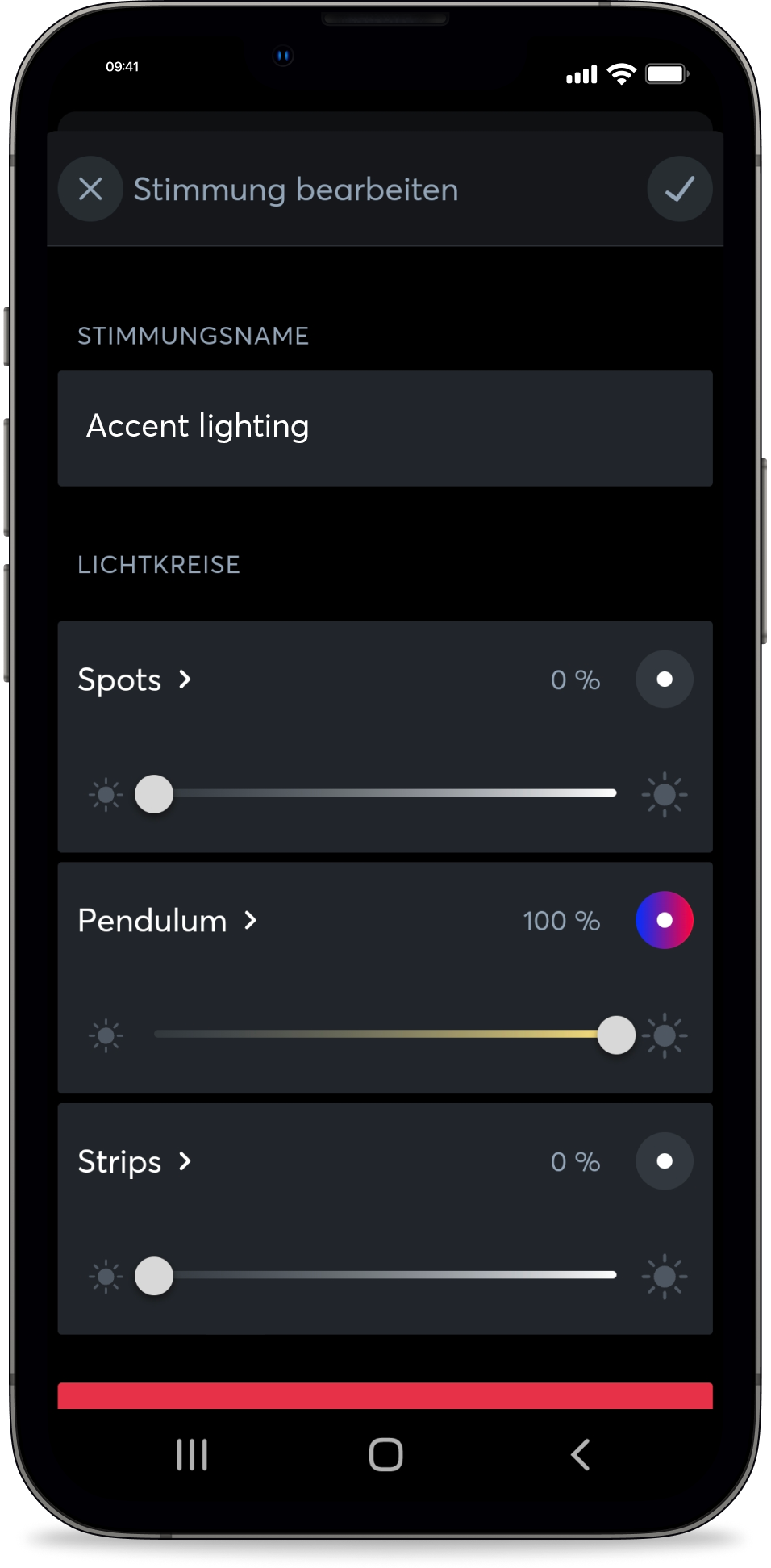
Accent lighting (lighting provided exclusively by the lighting group with focused illumination and a gentle colour change, ID: 72):
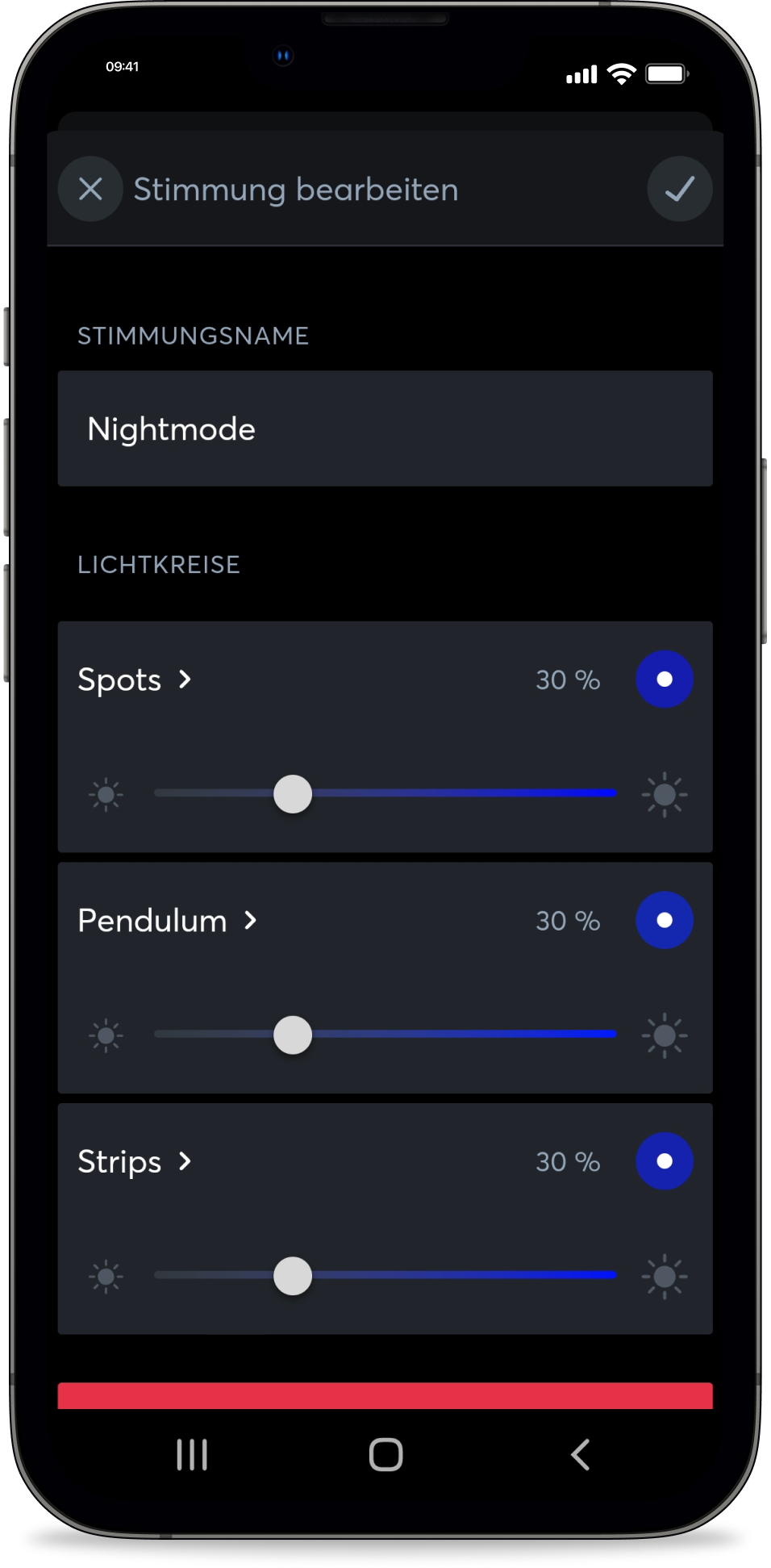
Night lighting (ID: 74):
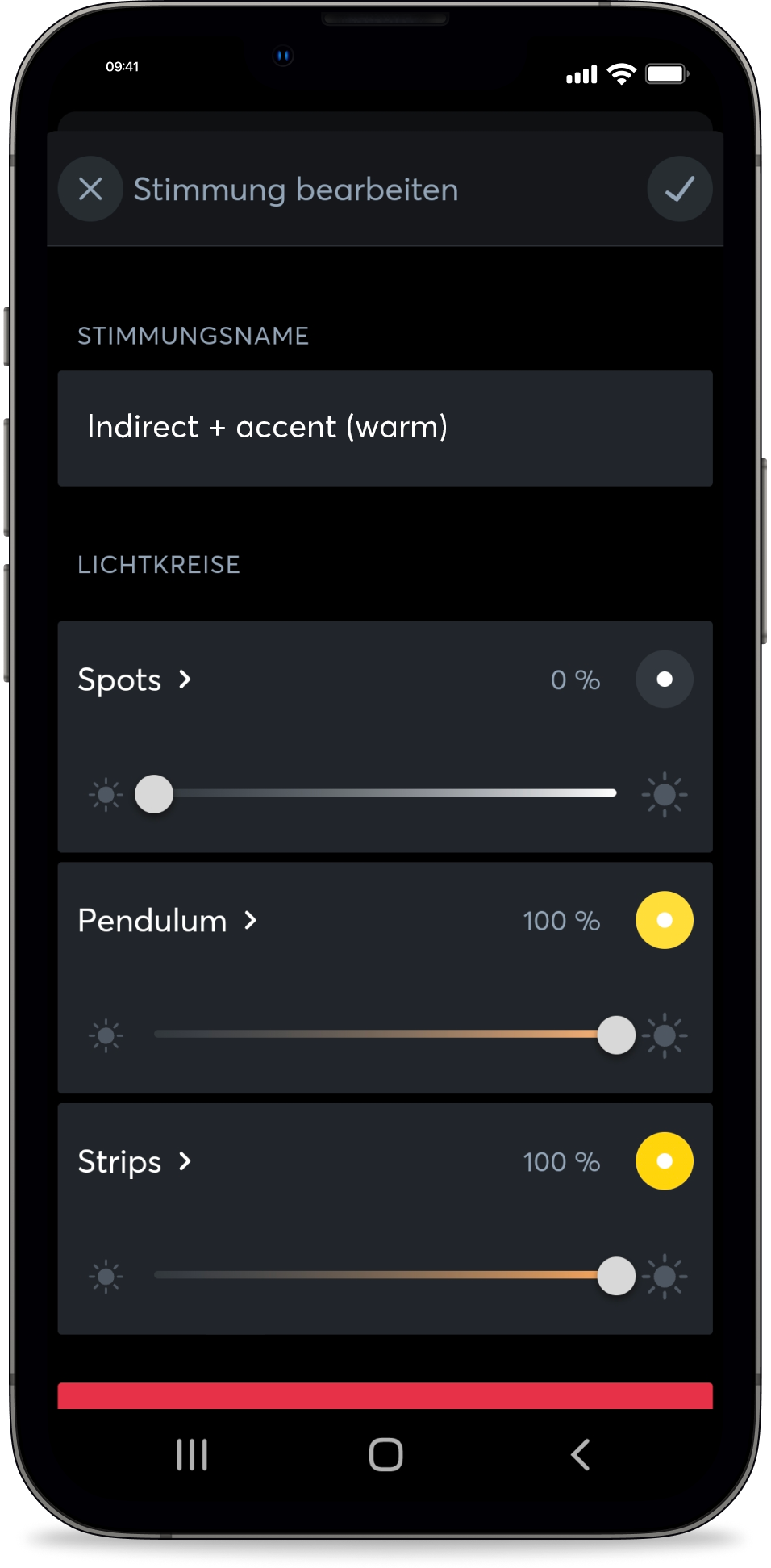
Indirect + Accent Lighting (ID: 76):
Basic lighting (illuminated solely by the main lighting cluster, with a gentle colour change, ID: 71):

Indirect lighting – colour change (illuminated solely by the main lighting cluster, with a gentle colour change, ID: 73):
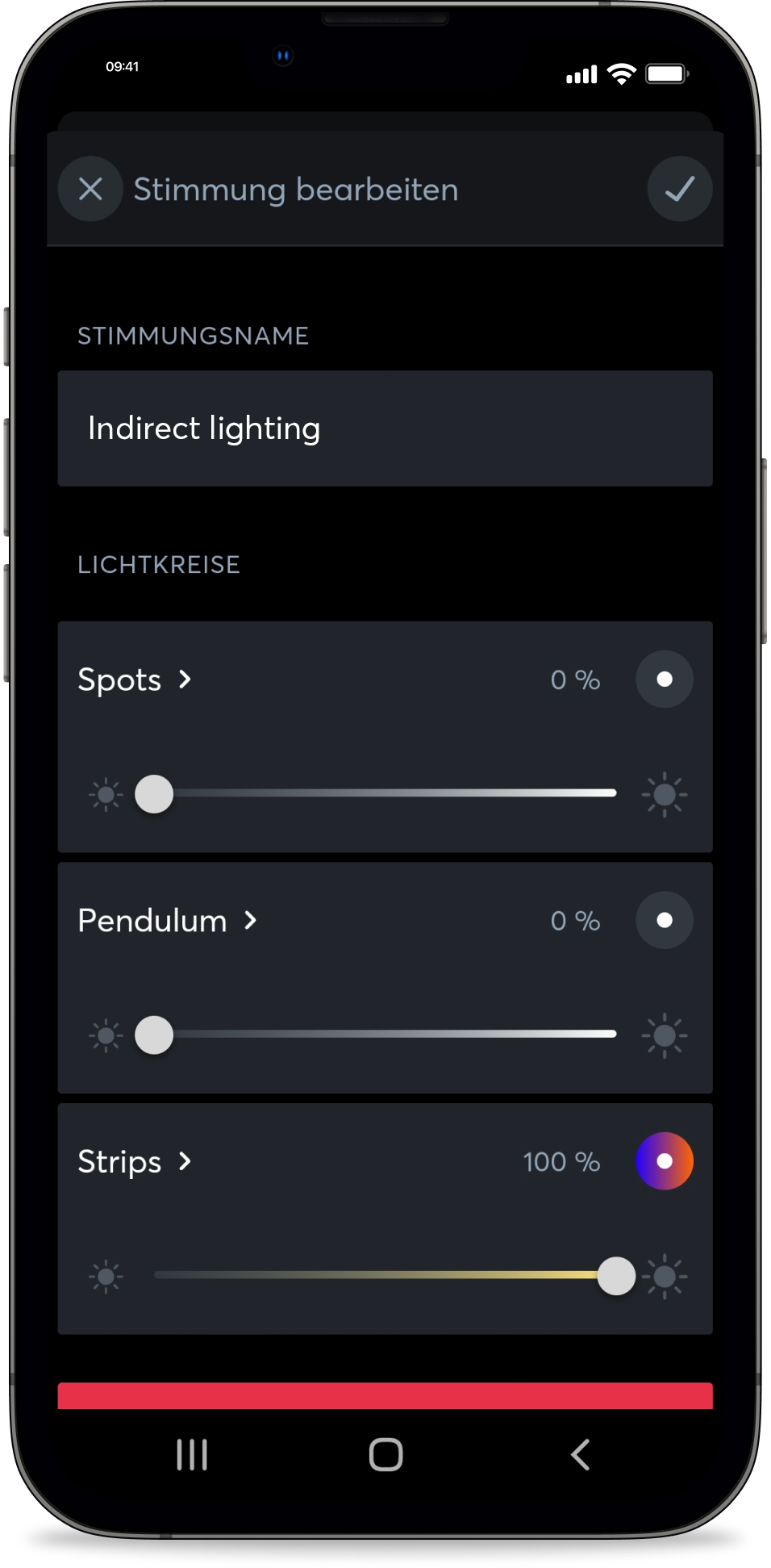
Indirect lighting – warm light (ID: 75):
Indirect + Accent + General Lighting (ID: 77):
How can I use the audio functions on the LOXONE Experience TV?
There are two options for the audio functions on Experience TV:
- Play the entire audio track, including the effects (ringing, alarm, soundcheck), through the TV.
- Recommended: Play the video via the TV and the sound effects via the LOXONE Audioserver. To do this, simply connect the virtual text input to the audio player in LOXONE Config.
What is the function test?
In the function test, all commands sent to the Miniserver are displayed with a timestamp. If you now click on one of the commands, it will be sent immediately, and you should see a response in the room. If there is no response, your app is not connected to the Miniserver correctly.
How do I set the correct times for the screensaver?
On most devices and sticks, there are two types of screensavers: the device’s own screensaver or sleep function, and the screensaver provided by the ‘LOXONE Experience TV’ app. You can set the start time for these in the settings (default: 120 seconds, i.e. the screensaver starts after 120 seconds).
In the device’s main settings, set the device’s screen saver to a later time than the screen saver in the Experience TV app to display the LOXONE reference images instead of the device-specific images.
How do I control LOXONE Experience TV using the Touch Pure Flex?
Experience TV can also be controlled via web commands. For example, if you own a Touch Pure Flex and want to start a particular tour at the touch of a button.
Important: The LOXONE Experience TV app must be open on the device.
Create a virtual output in LOXONE Config. The address is structured as follows:
http://username:password@device’s IP address:8080/
The username and password refer to the ‘Config’ user, which is also saved in the app settings. You can find the device’s IP address in the device settings.
Create commands for the virtual output using the desired commands from our command list:
Command when ON: Desired command
Next, link the command for the virtual output to one of the touch points on the Touch Pure Flex. The display type of the touch point must be ‘Button’.
List of commands:
Back to top: up
Downwards: down
To the left: left
To the right: right
Confirm: select
Back: back
Lock/unlock settings: lock/settings
Play: play?id=
Video IDs:
Home Tour:
6f61d5f7-d0d4-4114-ae5f-25cd8377f912
Hospitality Tour:
91a79454-c184-4084-a6cb-fd5f991b0f20
Office Tour:
73406a0e-a07b-4da6-8f01-abdd7f0b1459
Restaurant Tour:
87f714ff-f114-4a1b-9762-c356456141a9
This is LOXONE:
4802ce78-1c27-4e90-9fc4-72be77bd50d5
What network settings does the Miniserver need to have?
To ensure that the Digital Experience Tour works correctly, the Miniserver network configuration must be set to ‘HTTP enabled’ under ‘Network Connections’.
FAQs
Which device should I use in the future?
For LOXONE Experience, we recommend a suitable TV box (e.g. Xiaomi TV Box S 3rd Gen) with the Google Play Store, an Amazon Fire TV Stick 4K Max or a Fire Cube. We have thoroughly tested these types of devices for faults and performance.
If a Fire TV device is not currently available from any provider and you are looking for an alternative device, please note the build model number of the device in question. Supported devices (including build model numbers): Fire TV Cube (2nd & 3rd Gen; AFTR & AFTGAZL), Fire TV 4-Series (AFTTI), Fire TV Stick Lite & Fire TV Stick HD (AFTSS), Fire TV Stick (3rd Gen; AFTSSS), Fire TV Stick 4K (AFTMM), Fire TV Stick 4K Max (AFTKA), Fire TV Stick 4K Max (AFTKA + 2nd Gen; AFTKM), Fire TV Stick 4K Plus (AFTMA08C15). Check that the build model number supported by Experience TV matches the one on the Amazon’s official product page.
Which lighting circuits are recommended?
We recommend using different types of lighting, e.g. RGBW LED spotlights for general lighting, LED Pendulum Slim for accent lighting and RGBW LED strips for indirect lighting.
Why am I getting a 401 or 403 error?
If you receive a 401 or 403 error message while using the app, this may mean that the user created in the configuration does not have sufficient permissions to use these commands. Check the user’s permissions.
Why am I getting a 404 error?
If you receive a 404 error, this may mean that the connection to the Miniserver has failed. Check the network settings in the Digital Experience Tour app and check whether the Miniserver is accessible on the local network in general.
The Miniserver isn’t responding; I’m not getting any error messages.
Check the username and password for the configured Miniserver user, as well as the permissions set for that user. Enable the display of error messages in the settings and check which error messages are being displayed.
Does Experience TV work with a Gateway Miniserver?
No, the virtual text input must be connected within the client miniserver through which the functions are executed.
Why am I getting an IOException?
An IOException means that the connection is not working properly. The problem could be:
- Your device is not connected to the internet
- Your device and your Miniserver are not on the same network
- Your port may not be set correctly
I've tried everything and it still isn't working. What should I do?
Send a log file via the Experience TV app menu, including your email address, and contact LOXONE Support.