The Stereo Extension adds an additional stereo speaker output to the Audioserver/Miniserver Compact. The stereo channel can also be separated and used as two single channels for different rooms or spaces.
The digital SPDIF output can be activated instead of the amplifier channels.
Up to 10 Stereo Extensions can be connected to one Audioserver/Miniserver Compact via the Tree Turbo interface.
Suitable for commercial and private settings, it connects passive speakers to the Loxone system.
Table of Contents
- Commissioning
- Tree Turbo
- Connecting Passive Speakers
- Separate Stereo Outputs
- SPDIF Out
- Gain Factor
- LED Status
- Planning
- Programming Examples
- Inputs, Outputs, Properties
- Safety Instructions
- Documents
Commissioning↑
The Stereo Extension is installed on a DIN rail in a suitable enclosure.
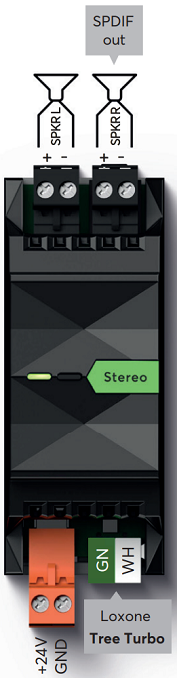
Connect the power supply (orange terminal) and Tree Turbo data lines (green/white terminals). The Stereo Extension will boot its operating system over the Tree Turbo interface, after switching on the power supply. The Audioserver or Miniserver Compact must also be ready for operation. After about one minute the Stereo Extension is ready and will blink orange.
After that, please proceed with Pairing Tree Turbo Devices
Then create an Audio Player block in the configuration.
To ensure correct heat dissipation:
Install the Stereo Extension upright in the distribution cabinet to ensure optimal heat dissipation.
Place audio components in the lower part of the distribution cabinet.
Maintain sufficient distance (approx. 15 mm) between Stereo Extensions to allow proper air circulation and prevent overheating.
Do not place heat-generating devices (e.g., power supplies, other Stereo Extensions, Audioservers, amplifiers, Ethernet devices, ...) underneath the Stereo Extension.
To avoid interference on speaker lines, route them separately from other cables.
Tree Turbo↑
For Tree Turbo wiring and topology, pairing, and speed requirements, see the Tree Turbo Interface documentation.
Connecting Passive Speakers↑
Passive speakers with an impedance of 4–8 Ohms can be connected using standard speaker cables up to 2.5 mm².
We recommend Loxone speakers from the installation and hi-fi range.
Ensure that the impedance setting in the configuration matches the connected speakers.
Although the individual speaker outputs are short circuit protected, they must not be bridged.
More information on planning and installation can be found here.
Separate Stereo Outputs↑
The option to split one stereo output of the Audioserver or of a Stereo Extension into two separate channels allows you to cover two different rooms or areas with one speaker each. The two outputs can be used independently on separate Audio Player blocks.
To separate the channels, first click on the output of an Audioserver or a Stereo Extension in the Periphery tree, then click on the menu bar button Separate Stereo Output. Now two individual outputs are available in the Periphery tree. In order to merge the two outputs into a stereo output again, click on the button Merge to Stereo Output.
Note: If the outputs are separated, there can be slight crosstalk between the two channels.
This means that at a volume of 65% or higher, you may hear the audio signal on the adjacent channel, even if it is switched off.
For directly adjacent rooms, this effect is usually not noticeable, since at this volume the music from the adjacent room can also be heard through the walls.
The Line Out and SPDIF Out options are not available for separated outputs.
SPDIF Out↑
The SPDIF Out (black jack socket) is a digital electrical SPDIF output. Connect AV devices such as amplifiers or active speakers using a 3.5mm to RCA cable; the electrical SPDIF signal is on the left (white) RCA plug. Connect this plug to a digital coaxial audio input.
Equalizer settings are not applied to the SPDIF Out.
Use high-quality shielded cables and run them separately from other cables.
The SPDIF Out can be activated in the properties of the respective output:
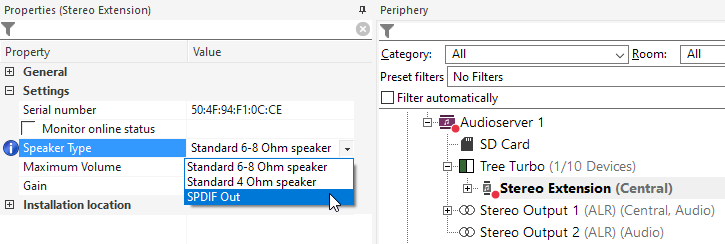
When SPDIF Out is selected for an output, the speaker outputs are disabled and the signal is output at the SPDIF Out instead.
The SPDIF Out option is not available for separated outputs.
The output volume depends on the Volume Mode selected in the output's properties:
Standard: the output signal level varies with the volume set on the Audio Player.
External volume: the output signal stays constant at a fixed level (Fixed Level). The actual loudness is set by an external device such as an amplifier, driven by the Audio Player's external volume outputs.
Two modes are available:
- External volume absolute value: connect the Volume output to a volume actor. The Audio Player sends the target volume value to the device, and the current volume level is shown in the app.
- External volume up/down: connect the V+/V- outputs. The Audio Player sends one pulse per volume step and does not send several pulses at once; no total volume is shown in the app.
Gain Factor↑
The gain factor can be adjusted in the settings of the product:

The gain factor shifts the speaker's base volume in a range of +/-6 dB.
Example A: Four Install Speaker 7 play together with one Install Sub 10 and must be set to -5, otherwise they would be too loud in relation to the subwoofer. The exact value varies for each application.
Example B: One Satellite Speaker IP64 Master plays together with one Install Speaker 10 Passive (on a different Stereo Extension) and should play at the same volume. The Install Speaker 10 Passive plays slightly louder, so the Satellite Speaker can be raised by +5. Adjust this setting to your hearing and taste.
LED Status↑
| Left LED | Right LED | Description |
|---|---|---|
|
| Extension is booting. |
|
| Extension has started, but has not yet been paired with the Audioserver/Miniserver Compact, or can no longer reach it. |
|
| Everything OK, device is online. |
|
| Device was selected in Loxone Config and is identifying. |
|
| Check power supply and Tree Turbo connection. |
|
| Short fast flashing (both LEDs), followed by continuous green/orange: Extension starts the boot process and tries to connect to the Audioserver/Miniserver Compact. If the LEDs remain continuous green/orange, the Audioserver/Miniserver Compact cannot be reached. Check the Tree Turbo connection and Audioserver/Miniserver Compact. |
|
| The Stereo Extension is overheating. |






Planning↑
Notes on the proper planning of a complete audio system.
Programming Examples↑
Different programming solutions for various audio configurations.
Diagnostic Inputs↑
| Summary | Description | Unit | Value Range |
|---|---|---|---|
| Amplifier limit | If the temperature of the amplifier reaches a critical point, the volume of the zone is reduced. This may be due to overloading or excessively high ambient temperature. | - | 0/1 |
| Online Status Stereo Extension 1 | Indicates whether the device can be reached by the Miniserver. Diagnostics for Air devices Diagnostics for Tree devices Diagnostics for Extensions | Digital | 0/1 |
| Temperature Shutdown | Input is active, when the outputs of the device have been switched off due to high device temperature. Possible reasons: Ambient temperature too high, outputs overloaded. | Digital | 0/1 |
| System temperature | Provides the internal device temperature. This is often the temperature of the CPU or another location in the device. | ° | ∞ |
Properties↑
| Summary | Description | Unit | Value Range | Default Value |
|---|---|---|---|---|
| Serial Number | Specifies the serial number of the device. | - | - | - |
| Monitor Online Status | If checked, you will be notified via System Status or the Mailer if the device is no longer available or goes offline. | - | - | - |
| Speaker Type | Speaker type used in this zone to find the optimal sound settings. | - | - | - |
| Maximum Volume | Determines the maximum (physical) output power of the amplifier in percent, thus limiting the maximum possible volume for this output. The volume values from 0-100% of the Audio Player or App are scaled accordingly. | % | 0...100 | 100 |
| Gain | Adjusts the volume of this output in decibels. This control helps balance the sound levels across different speakers or environments, ensuring consistent audio output. The volume is scaled and limited according to the specified maximum volume. | - | -6...6 | 0 |
Safety Instructions↑
Installation must be carried out by a qualified electrician in accordance with the applicable regulations.
This device must be mounted on a DIN rail in an electrical distribution enclosure to ensure protection against contact, water and dust.
Only mount the device on a horizontal DIN rail to ensure heat dissipation by convection.
Protect the device from dust, moisture and vibrations.
Documents↑
Datasheet Install Speaker 7 Passive
Datasheet Install Speaker 10 Passive