

Problem? Solution!
Want to make sure your programming works smoothly, or have questions?
Start a session:
This is how to start a remote connection session and share your screen with your Partner Coach as part of a technical support call.
Your Partner Coach will give you a Session ID. Simply enter it into the field below and click ‘Connect’.
Your session is 100% secure and runs over an encrypted connection.
(You may need to download Zoho Assist if it prompts you to, if you haven’t done this before.)
Once you have entered your ID, your Partner Coach can see your screen to help you navigate Loxone Config and address your technical support questions.
Note: As this is a screen-sharing session, we advise closing any unnecessary programmes, private windows or content containing sensitive information beforehand.
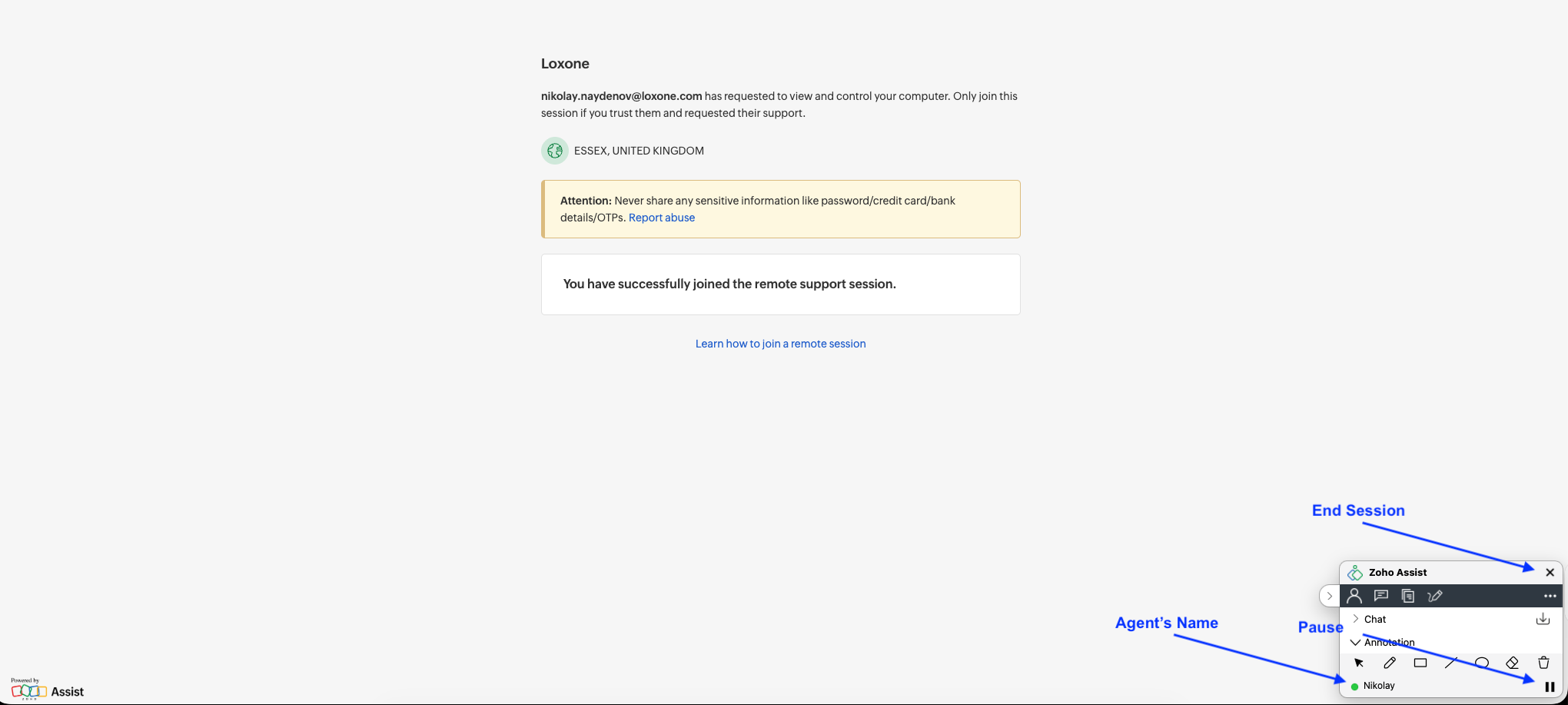
You can see that your session is active and the name of the Loxonaut in the window in the bottom right-hand corner. From here, you can also click the pause icon to pause your screenshare, or click the X to end the session.
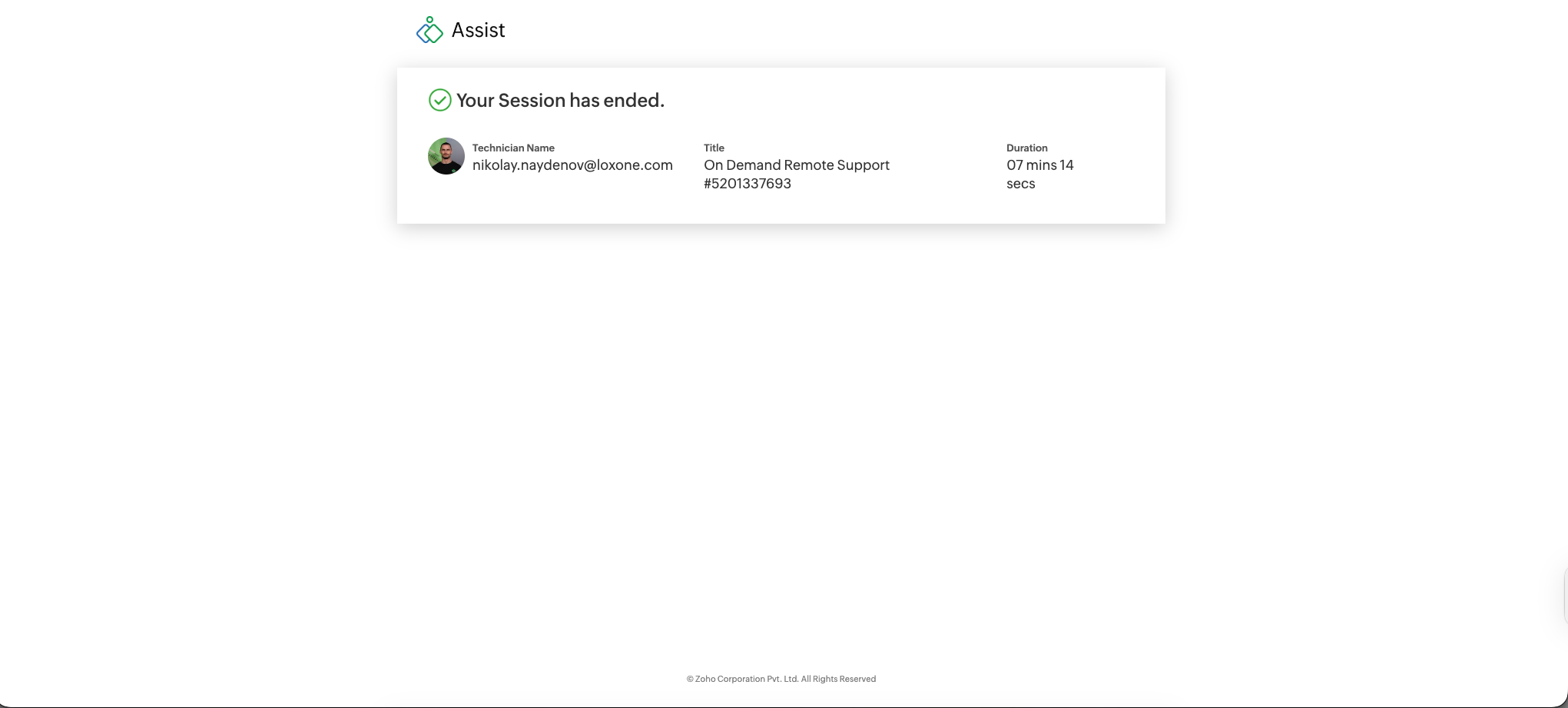
Once the session has ended, you will get the following confirmation.
Unstable Connection?
If you get a message saying that your connection is unstable, please refresh the page, restart your browser, or try a different browser.