The Schüco Extension is designed to integrate up to 30 Schüco devices like TipTronic windows or ASE 60/80 sliding doors.
To protect the building, windows and doors from wind and rain, we recommend the combination with a Loxone Weather Station.
Table of Contents
- Commissioning
- Pairing Schüco Devices
- Assigning power supplies
- Window status
- Inputs, Outputs, Properties
- Safety Instructions
- Documents
Commissioning↑
The Schüco Extension is installed on a DIN rail in a suitable enclosure.
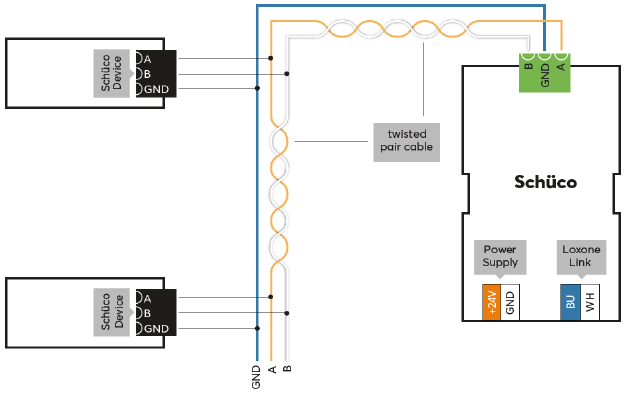
Connect the power supply and Link communication to the Miniserver.
The Schüco units are connected to the Schüco Extension via the element bus. They must be configured using the Schüco Engineering Tool Automation (ETA) software prior to commissioning them. To connect and configure the units, please follow the Schüco technical documentation, which can be found in the Help section of the ETA software.
The Extension starts after switching on the power supply, and the status LED will flash orange after a short time when the connection to the Miniserver is established.
Then follow the pairing procedure on the Link Interface.
Pairing Schüco Devices↑
To search for Schüco devices, first click on the Schüco Extension in Loxone Config, and then activate Schüco Device Search.
The window that opens will list all connected Schüco devices, that are not yet part of the program:
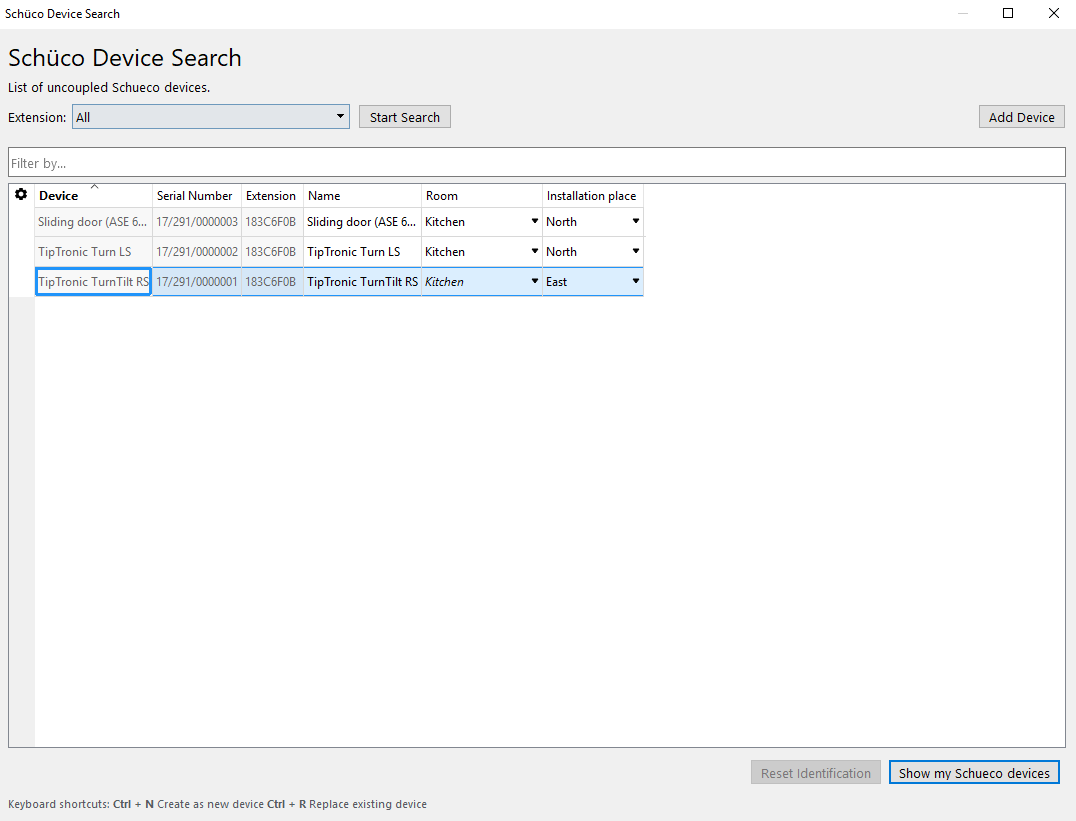
When highlighting one of the devices, it will identify by flashing its status LED (if present). With the button Identify device devices can additionally be identified by a short drive (open/close).
Select the desired device, assign a name, room and installation location and add it to the programming using the Pair Device or + button.
The right window lists all the devices that are currently part of the program. You can display them by clicking the button Show my Schüco devices. You can also replace an existing device with a new device of the same type that was found in the search. This is useful when a device needs to be replaced or devices are added to a pre-configured program. Select the device to be added and the device to be replaced. By clicking on the button with the arrow pointing right, the old device is replaced with the new one in the program.
To apply the changes, save the program in the Miniserver.
Now the added devices are ready for use and the functions are available in the Periphery Tree in Loxone Config.
Assigning power supplies↑
Schüco devices can be assigned to a specific power supply in their properties. To do so, assign a number to each power supply and then assign the Schüco devices to the power supply to which they are connected.
This information is then used by the Miniserver to avoid overloading the power supplies.
If multiple devices on the same power supply receive a command, they are not operated simultaneously, but consecutively.
Window status↑
The window status input for Schüco devices provides a status code that indicates a detailed status of the window.
Meaning of status type:
Static - window not in motion
Dynamic - window in motion
| Value | Meaning | Status type | Hex value (Diagnostics) |
|---|---|---|---|
| 16 | Closed and locked | Static | 0x10 |
| 17 | closed and unlocking | Dynamic | 0x11 |
| 18 | Closed and unlocked, window is against frame | Static | 0x12 |
| 19 | Opening to venting position | Dynamic | 0x13 |
| 20 | Partially open in ventilation position | Static | 0x14 |
| 21 | Fully open in ventilation position | Static | 0x15 |
| 22 | Closing from ventilation position | Dynamic | 0x16 |
| 23 | Closed and locking | Dynamic | 0x17 |
| 24 | Closed and unlocking (turn direction) | Dynamic | 0x18 |
| 25 | Closed and unlocked (turn direction) | Static | 0x19 |
| 26 | Open (turn direction) | Static | 0x1A |
| 27 | Closed and locking (turn direction) | Dynamic | 0x1B |
| 28 | Opening in NRWG direction / XXL | Dynamic | 0x1C |
| 29 | Open in NRWG direction / XXL | Static | 0x1D |
| 30 | Closing from NWRG direction | Dynamic | 0x1E |
| 31 | Window is open beyond 100% | Static | 0x1F |
| 32 | Finger latch is unlocking (turn direction) | Dynamic | 0x20 |
| 33 | Finger latch is locking (turn direction) | Dynamic | 0x21 |
| 48 | Window is not commissioned | Static | 0x30 |
| 49 | Window is in boot loader | Static | 0x31 |
| 50 | Window is in service mode | Static | 0x32 |
| 66 | Calibration run required | Static | 0x42 |
| 255 | Invalid status, Reserved | - | 0xFF |
Diagnostic Inputs↑
| Summary | Description | Unit | Value Range |
|---|---|---|---|
| Online Status Schüco Extension | Indicates whether the device can be reached by the Miniserver. Diagnostics for Air devices Diagnostics for Tree devices Diagnostics for Extensions | Digital | 0/1 |
Properties↑
| Summary | Description | Default Value |
|---|---|---|
| Serial Number | Specifies the serial number of the device. Enter 'Auto' to automatically pair an Extension with unknown serial number. This can only be used if there is only one Extension of the same type on a standalone Miniserver (not in a Client-Gateway setup). Save in the Miniserver to pair the Extension. Afterwards the program must be loaded from the Miniserver to transfer the actual serial number of the Extension into the program. | - |
| Monitor Online Status | If checked, you will be notified via System Status or the Mailer if the device is no longer available or goes offline. | - |
Safety Instructions↑
Installation must be carried out by a qualified electrician in accordance with the applicable regulations.
This device must be mounted on a DIN rail in an electrical distribution enclosure to ensure protection against contact, water and dust.