To manage Android and iPad-OS tablets with a Miniserver, these can be integrated similarly to Air or Tree devices.
Only the paired Miniserver is stored in the App, all other previously added Miniservers are removed during this setup. Trust Link and Miniserver Shortcut are not supported.
The managed tablets are displayed in the device status.
Table of Contents
Setup↑
First, a new tablet is added in the Config under "Managed Tablets":
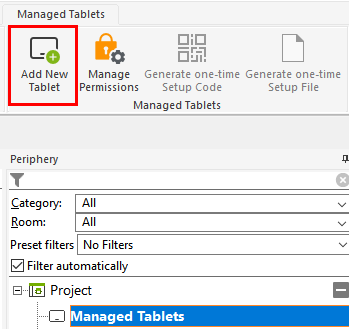
Adding tablets automatically creates a user for the respective tablet. Permissions can be assigned via the User and Rights Management. All elevated permission features are disabled, e.g. expert settings, Air/Tree device search, ...
The App's display on the tablet can be adjusted in the properties window:

To pair the tablet with the Miniserver, a one-time setup code or file can be generated, which is required in the Loxone App on the tablet.
Then save to the Miniserver again.

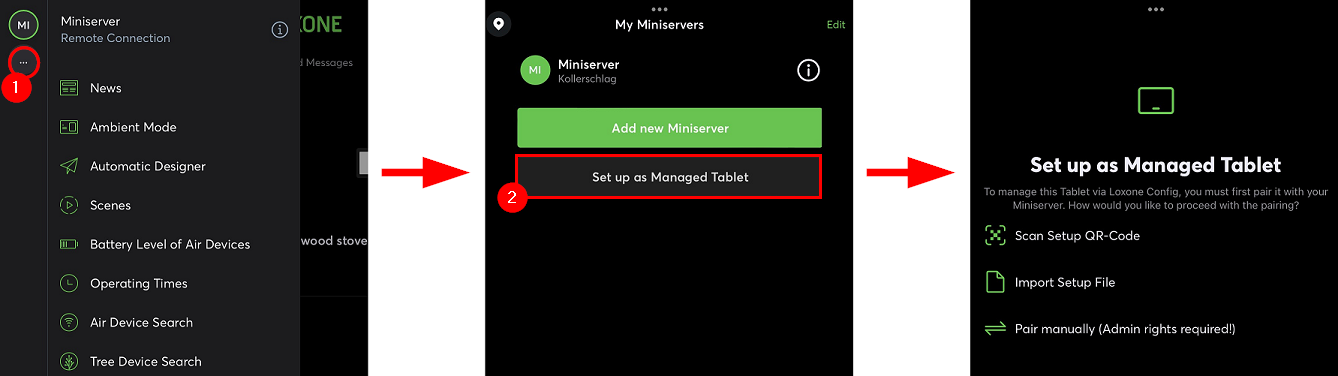
Open the Loxone App on the tablet, click on "Set up as Managed Tablet" and select the preferred form of setup.
Via "Pair manually", a pre-configured tablet can be replaced or a new one added.
The current Miniservers can each manage up to 63 tablets, Gen. 1 variants up to 31.
If multiple tablets are used in managed mode, ensure that each device has a unique IP address. Otherwise, the managed tablet may automatically be logged out after some time.
Note: The minimum required screen resolution for Ambient Mode is 1024×700 pixels. On some tablets, a high display zoom level may prevent Ambient Mode from displaying properly. In such cases, adjusting the zoom level in the tablet’s display settings can resolve the issue.
Programming↑
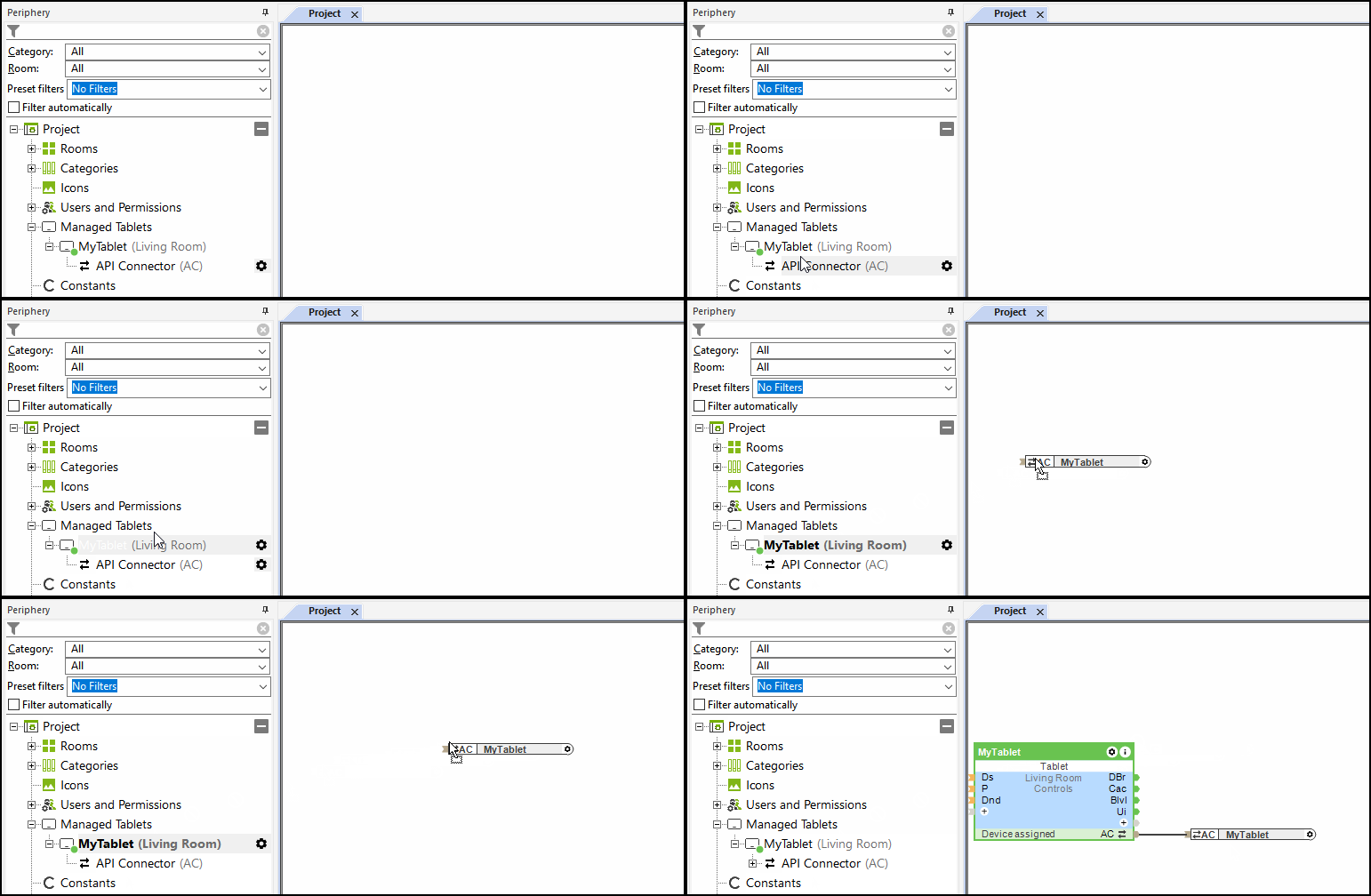
The managed tablet is further integrated using the Tablet function block in Loxone Config:
Sensors↑
| Summary | Description | Unit | Value Range |
|---|---|---|---|
| Battery Level | Provides the current battery level. | % | 0...100 |
Diagnostic Inputs↑
| Summary | Description | Unit | Value Range |
|---|---|---|---|
| Online Status Managed Tablet | Indicates whether the device can be reached by the Miniserver. Diagnostics for Air devices Diagnostics for Tree devices Diagnostics for Extensions | Digital | 0/1 |
Properties↑
| Summary | Description | Unit | Value Range | Default Value |
|---|---|---|---|---|
| Device model | - | - | - | |
| Operating system | - | - | - | |
| Default Screen | Specifies which screen should be displayed upon app launch or when Ambient Mode is re-activated. | - | - | - |
| Screensaver | Specifies the appearance of the Screensaver. Screensaver activates after end of presence and end of user interaction. | - | - | - |
| User interaction overrun duration | Display remains active for this duration after last user interaction. | s | 30...50000000 | 60 |
| Monitor Battery Level | If checked, you will be notified via System Status when the battery level gets too low. | - | - | - |