The Status Monitor function block can be used to monitor and display user-defined states for devices, logics and inputs.
Table of Contents
Inputs↑
| Abbreviation | Summary | Description | Value Range |
|---|---|---|---|
| Stat | Status | Connect one or multiple status inputs. The possible value-text pairs can be defined in the status dialog. | ∞ |
Outputs↑
| Abbreviation | Summary | Description | Value Range |
|---|---|---|---|
| Txlc | Text last change | Room, name and status of last changed object with defined status text. | - |
| Csr | Count state rest | Number of devices or objects that do not match with any defined state value. | ∞ |
| Cs1-10 | Count state 1-10 | Number of devices or objects whose values match the corresponding defined status values of Cs1-10. | ∞ |
| API | API Connector | Intelligent API based connector. API Commands | - |
Properties↑
| Summary | Description | Value Range | Default Value |
|---|---|---|---|
| Activity Log Entries | Number of entries in the activity log. 0: log is disabled The activity log tracks relevant changes since program start. | 0...100 | 20 |
| Assign Status Monitors | Choose subordinate status monitors to enable the aggregation of their states based on the text-value pairs defined by the primary status monitor. | - | - |
| Status Configuration | Text-value pairs | - | - |
Functionality↑
Every object connected to input "Stat" and other integrated Status Monitors will be monitored and counted to the corresponding status outputs if their values match. States without a configured status value will not be used. Inputs that do not match with any status value will be counted towards "Csr".
Priorities are assigned to each state (1: high, 11: low). The user interface uses this to show information of highest priority first.
The status text is displayed in the user interface and logged at output "Txlc". The status color is used for the text and icon in the user interface.
Function block history uses the text from output "Txlc".
Programming example↑
Double-click on the block to open the configuration window, where up to 11 states can be defined.
A status is reserved for the number of undefined values and output at "Csr".
The top entry has the highest priority for the user interface and is therefore displayed first.

Assign Status Monitors
Additionally, via "Assign Status Monitors" in the properties window, Status Monitor blocks can be selected and integrated.
The selected blocks inherit the status settings of this Status Monitor.
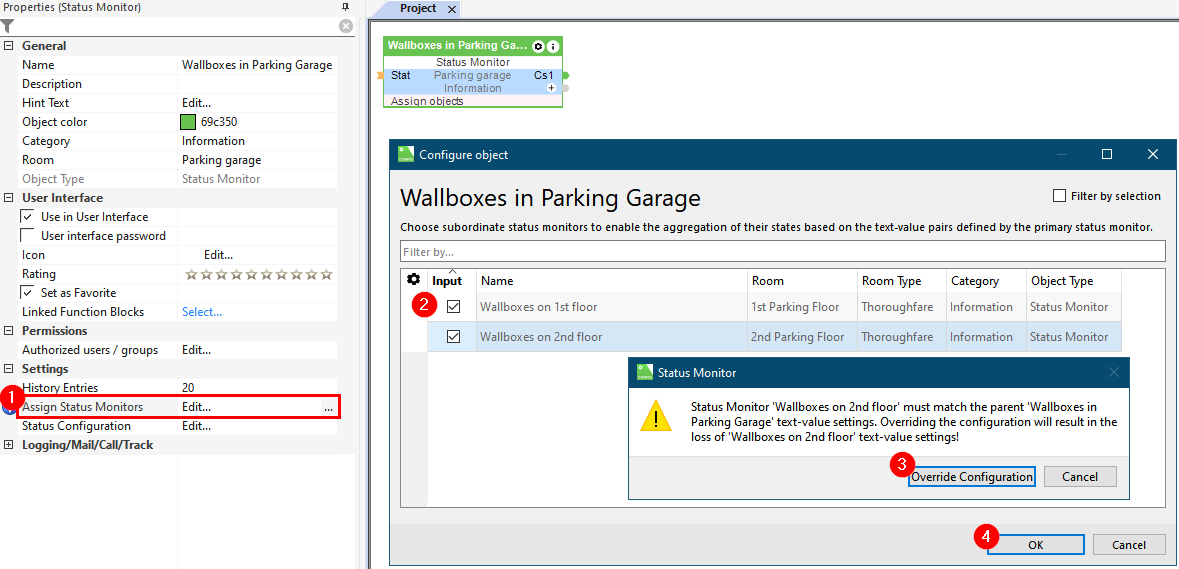
In this example, the Status Monitor provides an overview of all wallboxes in a multi-level parking garage, indicating which wallboxes are available.


Monitoring value ranges and texts↑
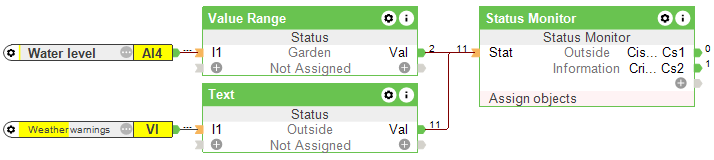
To define states for value ranges and texts, the Status function block can be used in combination with the Status Monitor.
History↑
In the user interface, the history of the function block can be displayed.
A maximum of 100 entries can be shown.
When you restart or save to the Miniserver, the history is cleared.
