In order to use the "Music Server Zone" function block, a Music Server must first be commissioned and created in Loxone Config.
Table of Contents
Inputs↑
| Abbreviation | Summary | Description | Unit | Value Range |
|---|---|---|---|---|
| TgZ | Toggle Zone | Toggles zone on and off | - | 0/1 |
| Zon | Zone On | Digital Input - Single pulse turns zone on This input is only visible in certain configurations. | - | 0/1 |
| Zoff | Zone Off | Digital Input - Single pulse turns zone off When playing a playlist, pressing Play will restart playback at the beginning of the title. This input is only visible in certain configurations. | - | 0/1 |
| V+ | Casatunes Music Server: Volume | Trigger volume up Double click selects the next source | - | 0/1 |
| Loxone Music Server: Volume | Single pulse to turn volume up Double click selects the next zone favorite | - | 0/1 | |
| Loxone Music Server Gen 2: Volume | Single pulse to turn volume up Double click selects the next zone favorite | - | 0/1 | |
| V- | Volume | Trigger volume down Double click turns zone off | - | 0/1 |
| AIv | Volume level | Analog Input - Value for volume level | % | 0...100 |
| S+ | Casatunes Music Server: Next Source | Trigger next source | - | 0/1 |
| Loxone Music Server: Next zone favorite | Trigger next zone favorite If a user-defined selection was made last, the first zone favorite is played. | - | 0/1 | |
| Loxone Music Server Gen 2: Next zone favorite | Trigger next zone favorite If a user-defined selection was made last, the first zone favorite is played. | - | 0/1 | |
| AIs | Casatunes Music Server: Source | Analog input source | - | ∞ |
| Loxone Music Server: Zone favorite | Analog input zone favorite | - | 0...8 | |
| Play | Start playback | Trigger start playback | - | 0/1 |
| Pause | Pause playback | Trigger pause playback When playing a playlist, pressing Play will resume playback at the current position of the title. | - | 0/1 |
| Stop | Stop playback | Trigger stop playback When playing a playlist, pressing Play will restart playback at the beginning of the title. This input is only visible in certain configurations. | - | 0/1 |
| Song+ | Next track | Trigger next track | - | 0/1 |
| Song- | Previous track | Trigger previous track | - | 0/1 |
| Mute | Mute | Trigger mute This input is only visible in certain configurations. | - | 0/1 |
| Shuffle | Shuffle | Trigger shuffle | - | 0/1 |
| Repeat | Repeat | Analog input repeat 0 = Off, 1 = Repeat continuously, 2 = Repeat once | - | 0...2 |
| Mo | Motion sensor | Motion sensor, starts playback of currently selected playlist | - | 0/1 |
| T5 | Combined button input | V+ and V- buttons are used. Double click on key 3 switches the zone off (see parameter Roff). | - | ∞ |
| R | Reset | Reset, turns zone off. When playing a playlist, pressing Play will restart playback at the beginning of the title. The name of the connected sensor is used in the user interface. | - | 0/1 |
| Dis | Disable | Child lock - disables all inputs, but not user interface | - | 0/1 |
| DisMo | Disable motion sensor | Prevents the music from coming on via Mo. Does not affect the automatic switch-off with parameter MT. | - | 0/1 |
| A | Alarm input | Activates playback of burglar alarm with the volume set in parameter Va Whilst the alarm input is active, all other inputs are disabled This input is only visible in certain configurations. | - | 0/1 |
| FA | Fire Alarm | Activates playback of fire alarm with the volume set in parameter Va This input is only visible in certain configurations. | - | 0/1 |
| Be | Doorbell input | Activates playback of doorbell with the volume set in parameter Vbe This input is only visible in certain configurations. | - | 0/1 |
| Buzzer | Alarm clock input | Activates playback of alarm clock with the volume set in parameter Vbu This input is only visible in certain configurations. | - | 0/1 |
| Sleep | Sleep timer input | Zone is muted and switched off after duration specified in Ts The sleep timer is reset when switching off the zone (Off, Pause, Stop, R). This input is only visible in certain configurations. | - | 0/1 |
| TTS | Text to Speech input | Text to Speech input Maximum length 400 characters This input is only visible in certain configurations. | - | - |
Outputs↑
| Abbreviation | Summary | Description | Unit | Value Range |
|---|---|---|---|---|
| Qa | Zone status on/off | - | 0/1 | |
| AQv | Current volume level | % | 0...100 | |
| AQs | Current source | - | ∞ | |
| Current zone favorite | - | ∞ | ||
| Current zone favorite | - | ∞ | ||
| AQr | Remaining time of sleep timer | Value indicating remaining time until zone is turned off by sleep timer This output is only visible in certain configurations. | - | ∞ |
| Qon | Zone on pulse This output is only visible in certain configurations. | - | 0/1 | |
| Qoff | Zone off pulse This output is only visible in certain configurations. | - | 0/1 | |
| RQ | Reset output Activated by reset input (R) or double click | - | 0/1 | |
| RaQ | Reset triple pulse | - | 0/1 | |
| API | API Connector | Intelligent API based connector. Music Server Zone is not supported by the Touch Pure Flex. API Commands | - | - |
Parameters↑
| Abbreviation | Summary | Description | Unit | Value Range | Default Value |
|---|---|---|---|---|---|
| Tdc | Double click interval | Time between 2 clicks to turn off zone If you do not want to use a double click enter 0 in this field. | s | 0...∞ | 0,35 |
| Sv | Volume step size | Volume step size when adjusting using Vol +/- | - | ∞ | 3 |
| Rf | First recurrence | If an input is ON longer than this time in seconds the command is repeated. This applies to V+ and V- (also T5) | - | ∞ | 0,5 |
| Rr | Repeat interval | When the input remains ON, the command is repeated at this interval (in seconds). The inputs V+ and V- (incl. T5) are affected | - | ∞ | 0,2 |
| MT | Automatic switch off motion | Automatic shutdown of the zone after the end of the last movement If this value is not equal to 0, the motion detector is used to turn off the zone independent of (TH). If you are using this to turn off music that was accidentally left on, the recommended value is 30 minutes (1800) | s | 0...∞ | 3600 |
| TH | Duration On | Activates the zone on motion and starts the timer (TH) on the falling edge of the motion detector input If this value is 0, automatic shutdown will be disabled | s | 0...∞ | 900 |
| Ti | Delay of the Motion Sensor | Deactivates Mo input after turning the zone off. If this value is set to 0 then the state of DisMo will be used | s | 0...∞ | 300 |
| Vm | Maximum volume level | Maximum volume level via App and block inputs This parameter is only visible in certain configurations. | - | 0...100 | 100 |
| Vd | Startup volume | Default volume level at power up Volume when switching the zone on. If set to -1 the zone's last volume is used when switching on. This parameter is only visible in certain configurations. | - | -1...100 | 10 |
| Va | Loxone Music Server: Alarm volume | Volume level for alarm sound (burglar or fire alarm). This parameter is only visible in certain configurations. | - | 0...100 | 75 |
| Loxone Music Server Gen 2: Alarm volume | Minimum volume level for alarm sound (burglar or fire alarm). If the zone is currently playing at a higher volume, the sound will be played at the current volume. This parameter is only visible in certain configurations. | - | 0...100 | 75 | |
| Vbe | Loxone Music Server: Doorbell volume | Volume level for doorbell sound This parameter is only visible in certain configurations. | - | 0...100 | 20 |
| Loxone Music Server Gen 2: Doorbell volume | Minimum volume level for doorbell sound If the zone is currently playing at a higher volume, the sound will be played at the current volume. This parameter is only visible in certain configurations. | - | 0...100 | 20 | |
| Vbu | Loxone Music Server: Alarm clock volume | Volume for alarm clock sound. This parameter is only visible in certain configurations. | - | 0...100 | 10 |
| Loxone Music Server Gen 2: Alarm clock volume | Minimum volume level for alarm clock sound If the zone is currently playing at a higher volume, the sound will be played at the current volume. This parameter is only visible in certain configurations. | - | 0...100 | 10 | |
| Vt | Loxone Music Server: TTS volume | This parameter is only visible in certain configurations. | - | 0...100 | 20 |
| Loxone Music Server Gen 2: TTS minimum volume | Minimum volume level for TTS ouput In order to be able to hear the voice output clearly at all times, it is always played back at the current volume level, which may be higher than parameter Vtts. This parameter is only visible in certain configurations. | - | 0...100 | 20 | |
| Ts | Sleep timer duration [s] | Duration of the sleep timer in seconds This parameter is only visible in certain configurations. | - | ∞ | 300 |
| Te | Event playback duration [s] | Minimum playback time of event sounds in seconds. If the value is too low, the event playback may be cut off. This parameter is only visible in certain configurations. | - | ∞ | 8 |
| Tqo | Delay of Qoff [s] | Delay of the pulse on Qoff after the zone has been switched off / paused This parameter is only visible in certain configurations. | - | ∞ | 30 |
| ROff | Ignore room off command | If the room-off function (input T5, double click on button 3) is detected, the music will also be switched off. | - | 0/1 | 0 |
Properties↑
| Summary | Description | Default Value |
|---|---|---|
| Music Server | Reference to the Music Server. To use this block, the corresponding Music Server must be selected here. | - |
| Assigned Music Zone | Defines the assigned Music Zone. | - |
Basic Programming↑
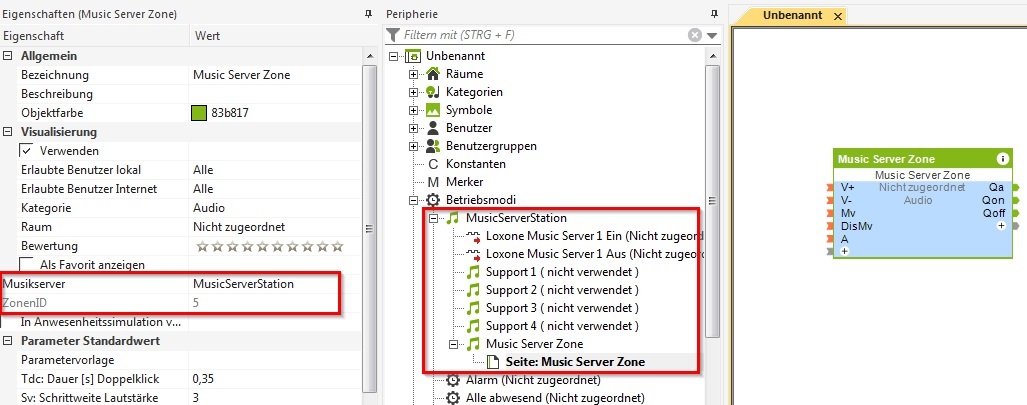
If a zone is renamed, this change will be applied for AirPlay and other services at the latest after a reboot of the Music Server.
Setup of UPNP zones↑
Although UPnP / DLNA is a defined standard, some additional parameters must be considered.
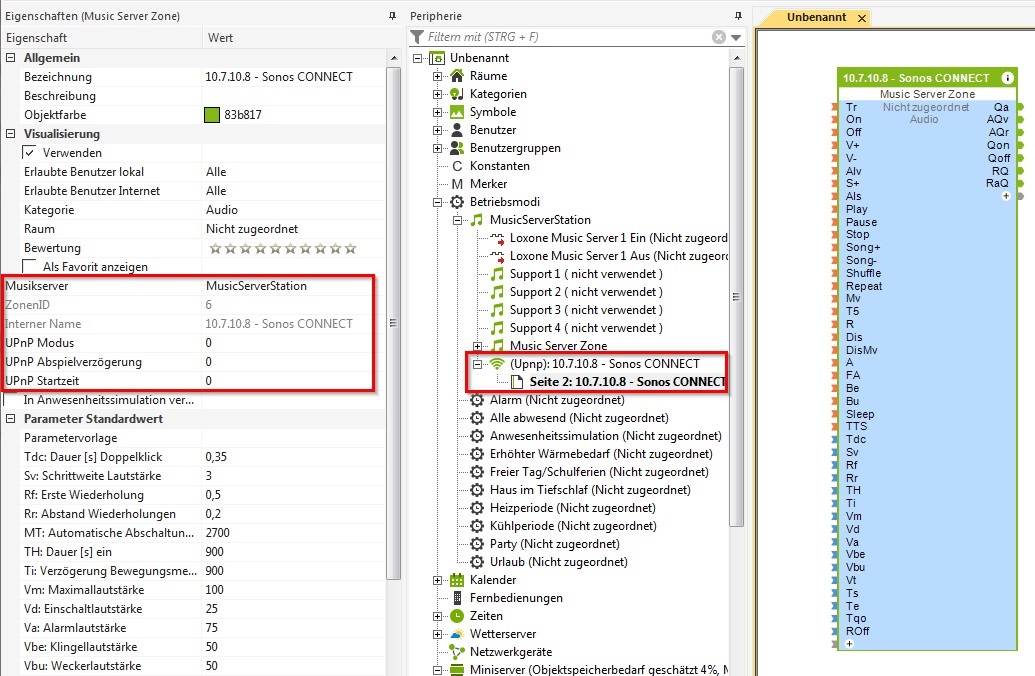
The default UPnP mode is 0 and the Music Server automatically selects the appropriate settings provided by the UPnP device.
With certain devices, the Music Server cannot automatically select the correct settings. For this, we have created predefined UPnP modes for popular devices:
0 = Autodetect (as far as possible depending device)
1000 = Vast electronics WiFi-HiFi
1001 = Sonos Play:3, ZP100, Play:1(1), Connect
1002 = Raumfeld
1003 = Pioneer (generic e.g.N30)
1004 = Pioneer (XW-SMA Series)
1005 = Marantz generic
1006 = Marantz CR-Series
1007 = Marantz NR-Series
1008 = Roku Players
1009 = IcyBox
1010 = Revo Axis gerneric
1011 = Revo Axis Stream series
1012 = Musical Fidelity M1
1013 = Sony X-xx Series
1014 = Lenco Playlink Series Devices
1015 = Denon CEOL Series
1016 = Sonos Playbar
1017 = Sonos Play:5
1018 = Sonos Play:1 (2)
1019 = Denon generic devices
1020 = WHD
1021 = Raumfeld II(2016 series)
1022 = Harman Kardon Receiver series
1023 = Onkyo generic
1024 = Onkyo CR-N755
1025 = Pure One Flow Radios
1026 = Pure Jongo S3X
1027 = WHD II (CE/9xxx series)
1028 = Silvercrest devices
If the device does not appear in this list and problems still occur with the UPNP device, please use the following settings:
2001 = When no music is audible, the player in the user interface indicates that music is being played.
2002 = If the change to the next song fails / playlists can not be played.
2003 = If the zone plays once but after a PAUSE no PLAY works anymore.
2004 = combination between 2001 and 2002
2005 = Combination between 2001 and 2003
2006 = Additional codec for generic devices
2007 = Uses additional pause / start requests when changing songs
Events↑
All event inputs play the event with a rising edge until the edge is back to 0. That applies to:
-Alarm/Fire Alarm
-Bell
-Alarm Clock
If one of the inputs in the config is active, the event sound will be played once. Thereafter, the zone remains paused until the edge is back to 0.
Even if the edge is very short, the event is played for the event time Te set in Config.
The Event Sounds can be accessed from the Music Server and the Data Generator (Windows Explorer) at the following address:

If you would like to set your own event sound, copy it into the folder. For the doorbell it is named as follows: "1-doorbell.mp3"
Grouped Events: alarm, fire alarm, bell, alarm clock
Grouped event commands should be used to trigger alarm, fire alarm or bell events.
-with the volume from the settings of the zone block: audio/grouped/{eventtype}/ZoneID1,ZoneID2,...
Example: audio/grouped/bell/1,3,9,8,10
-with volume values specified per zone: audio/grouped/{eventtype}/ZoneID1~VolumeZ1,ZoneID2~VolumeZ2,...
Example: audio/grouped/alarm/1~45,2~40,3~55
ATTENTION! These events MUST be ended with the same ZoneIDs: audio/grouped/{eventtype}/off/ZoneID1,ZoneID2,...
Example: audio/grouped/bell/off/1,3,9,8,10
audio/grouped/alarm/off/1,2,3
Presence Simulation↑
This function block has a presence simulation.
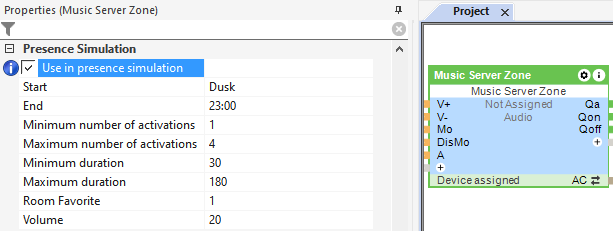
Activate and define the presence simulation in the properties window: