The Intercom function block is used to integrate and program the Loxone Intercom.
This allows intercom and video via the user interface or App.
Table of Contents
- Properties
- Inputs
- Outputs
- Parameters
- Programming example
- User Interface and Operation
- Text to Speech (TTS)
Properties↑
| Summary | Description | Default Value |
|---|---|---|
| Audio Player Bell Output | Pair the Intercom with your Audio Players to play a ringtone when the doorbell is pressed. | - |
| Reply with message | The specified text is played back as a voice message on the Intercom when selecting it in the user interface. | - |
| O1: User Interface Action 1 | Name for function 1 e.g. door release | - |
| O2: User Interface Action 2 | Name for function 2 e.g. outside light | - |
| O3: User Interface Action 3 | Name for function 3 e.g. Inside Light | - |
Inputs↑
| Abbreviation | Summary | Description | Value Range |
|---|---|---|---|
| Bell | Activate bell | Activates output (Bell) and assigned audio players. Activates output (Mute) if input (Mute) is 1. This input is not visible when the Intercom originates from another Trust member. | 0/1 |
| Mute | Mute bell | Deactivates output (Bell) and assigned audio players when 1. | 0/1 |
| TTS | Text to speech | Text input for playing a voice message over the Intercom speakers. This input is not visible when the Intercom originates from another Trust member. | - |
| Off | Off | Pulse: Outputs are reset / switched off. On: Block is locked. Dominating input. The name of the connected sensor is used in the user interface. | 0/1 |
Outputs↑
| Abbreviation | Summary | Description | Value Range |
|---|---|---|---|
| Bell | Bell | Output for controlling a doorbell. | 0/1 |
| Mute | Bell muted | Output for controlling an alternative, activated when the doorbell is muted and the bell is rung. | 0/1 |
| O1 | Custom output 1 | Output is named in the settings and triggered from the user interface. | 0/1 |
| O2 | Custom output 2 | Output is named in the settings and triggered from the user interface. | 0/1 |
| O3 | Custom output 3 | Output is named in the settings and triggered from the user interface. | 0/1 |
| API | API Connector | Intelligent API based connector. API Commands | - |
Parameters↑
| Abbreviation | Summary | Description | Unit | Value Range | Default Value |
|---|---|---|---|---|---|
| maxB | Maximum bell duration | Output (Bell) and (Mute) will remain active for set duration. The doorbell signal is only played once by the assigned audio players, even if visitors ring several times. Answering or rejecting the call deactivates the outputs (Bell) and (Mute) immediately. If set to 0, the bell will remain active until its answered in the visualization. | s | 0...∞ | 60 |
| Bbr | Button brightness | Sets the brightness of the intercom button illumination. This input is not visible when the Intercom originates from another Trust member. | % | 0...100 | 20 |
| Bbl | Activate bell button light | Activates the intercom button illumination when 1. This input is not visible when the Intercom originates from another Trust member. | - | 0/1 | 0 |
| Qon | ON duration of custom outputs (O1-3) | s | 0...∞ | 3 |
Programming example↑
First, a Loxone Intercom is paired.
The block is automatically created when the Loxone Intercom is dragged from the periphery tree to the programming page:
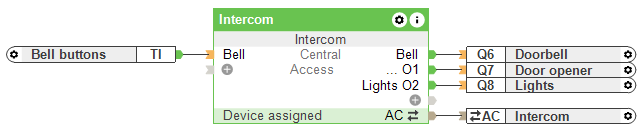
The doorbell button input of the Intercom is connected to the block's (Bell) input.
A separate doorbell can be connected to output (Bell). Outputs (O1-3) are used to control user-defined functions, such as door strikes and lighting. These can be named in the properties of the function block and are then available in the user interface to control the corresponding output.
A double-clicking on the block allows you to select Audio Player blocks. These will then play the doorbell sound when the doorbell is rung.

User Interface and Operation↑
Once the configuration is saved in the Miniserver and it has restarted, the Intercom functions are available in the user interface and App.
The video image can be viewed, calls can be accepted, and programmed functions, e.g. a door opener can be activated:
A maximum of 3 video streams can be opened simultaneously.

When the bell button on the Intercom in pressed, a notification with an image of the visitor is displayed on mobile devices. From the notification, you can accept the call or open the App.
 | These notifications may be restricted on some iOS devices if the "Private Relay" service is active. If this is the case, the notification will not display an image. Instead, the Loxone App is opened to access the functions of the notification and to display the image. |
| On iOS 15 devices, the connection to the Miniserver may be interrupted when establishing the video connection. The following steps may help in some cases: - Close the video view and try again - Use a different network (WiFi / mobile network). Apple is aware of this issues and will provide a fix with a future iOS update. |
Video and audio connection are not supported in the web interface of the Miniserver Gen. 1.
The Loxone Apps, on the other hand, do fully support the Miniserver Gen. 1.
Text to Speech (TTS)↑
The Text-to-Speech function enables texts to be converted into audible speech.
To achieve this, a text is input to the function block (TTS) input, which is then output through the Intercom.
| An Internet connection is required for the TTS function. Texts of up to 300 characters each (including spaces) are supported. |