Exosphere: Improved Analysis & Easier Navigation

What is Exosphere?
Exosphere stands for the simple management and analysis of customer installations – from a single miniserver to fleets with thousands of miniservers. It makes backups, updates, evaluations, billing and ongoing support much easier.
New Highlights in Exosphere
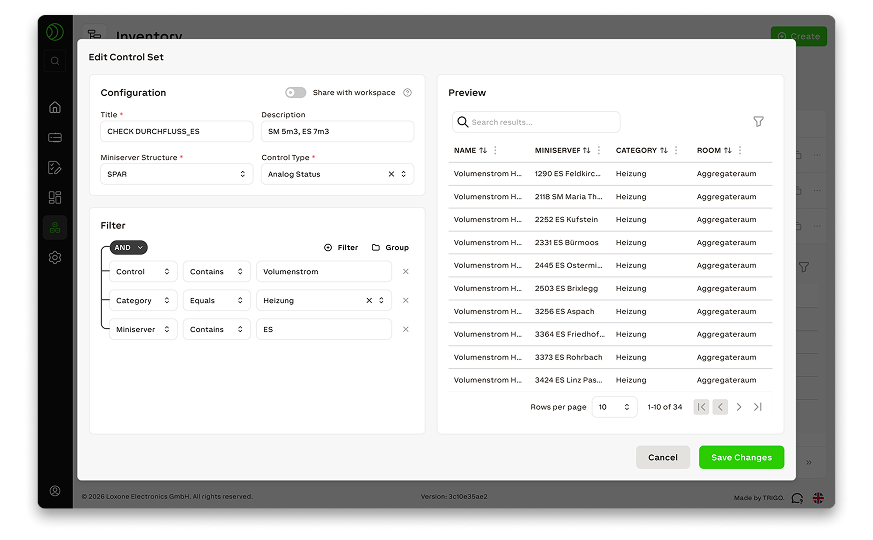
Dashboards with dynamic data sources
Once defined in building block sets, filter groups can be reused in dashboards and charts. This is particularly valuable for installations in many locations with identical data structures (e.g. franchise stores or branch networks):
- Central administration: Easily filter based on time periods, locations, or specific data points.
- Automatic synchronization: When a new location is added to the workspace, the system automatically integrates it into the existing data structure.
- Zero maintenance: Manual post-maintenance is completely eliminated, as new devices or changes in the workspace are dynamically incorporated into the dashboards.
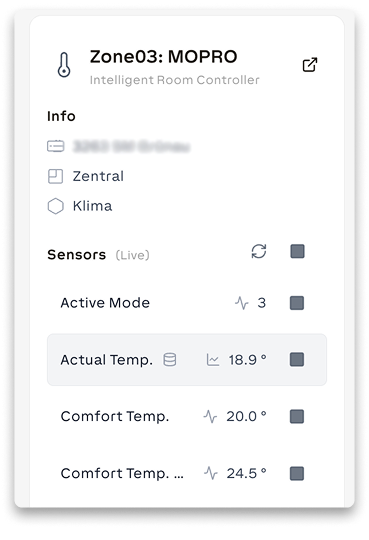
Current values directly in the building block view
Quickly access live and trend data from your building blocks without having to create a chart first. This way, you always have the current values in view and can see in real time whether your building is running efficiently.
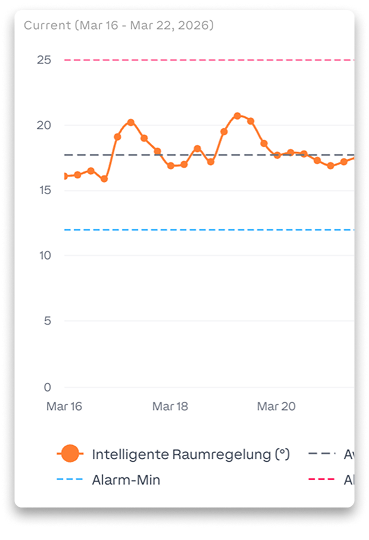
Detect deviations and outliers more quickly
Compare time periods, locations, and setpoints directly in Exosphere. New analysis and filter functions immediately show where rooms, systems or buildings deviate from the expected values.
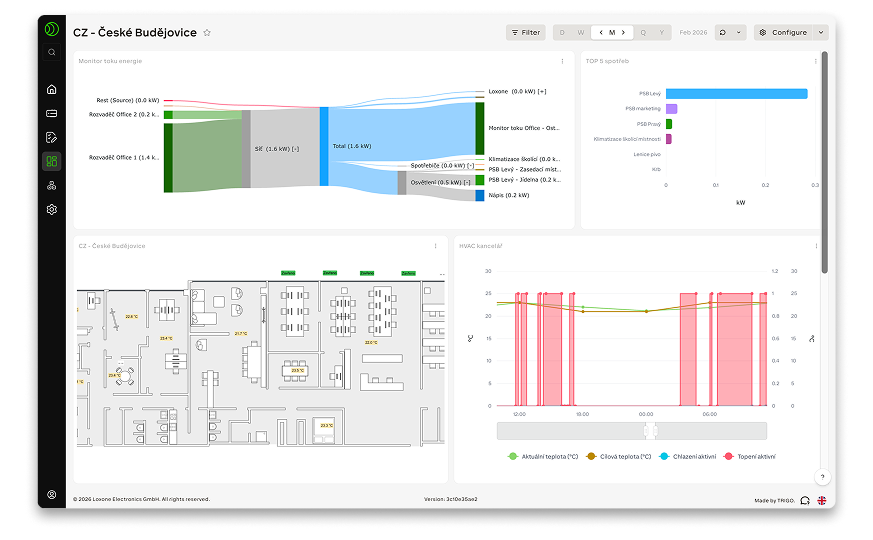
More flexible dashboards for large overviews
The most important data always at a glance: Dashboards now support multiple screens, scrollable views, and collapsible sections. This means that even extensive dashboards remain clear and, in combination with building block sets, maintenance-free.
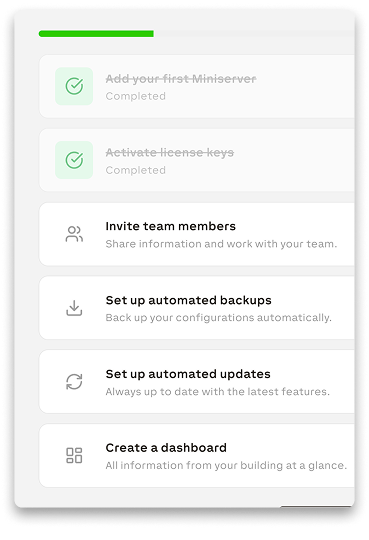
Get started faster with the new onboarding
The guided introduction explains the most important functions step by step directly in Exosphere. This will help you find your way around faster and allow you to work productively without a long training period.
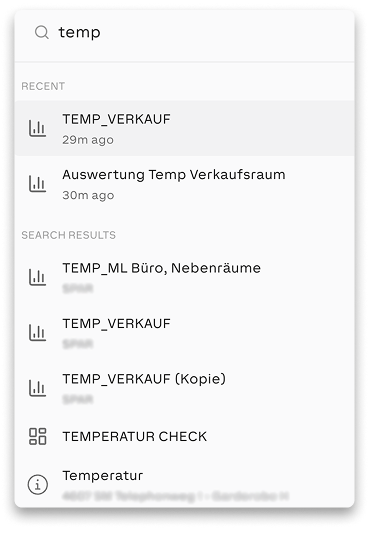
Quick search throughout the workspace
With CTRL+K or CMD+K, you can jump directly to pages, dashboards, devices, and building blocks – without detours through menus. This saves clicks and speeds up navigation, especially in large workspaces.
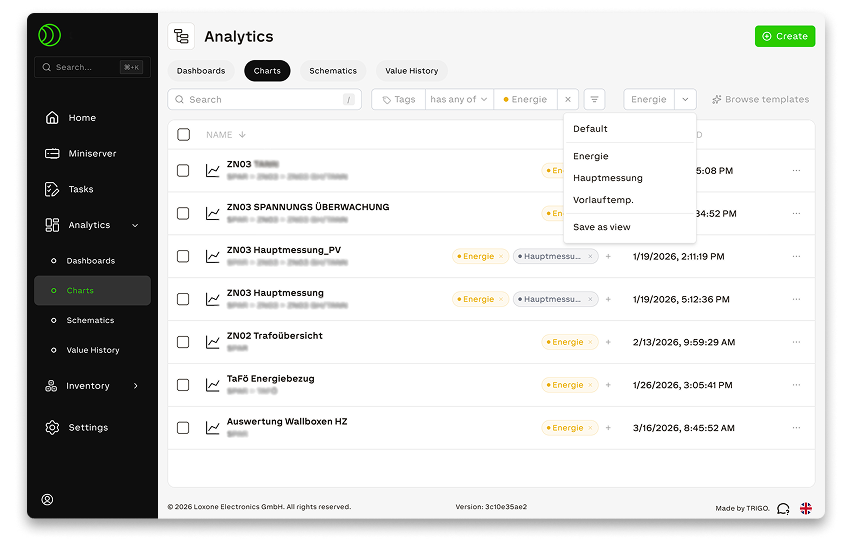
Find objects faster in large workspaces
Tag and save filters to find frequently used objects faster. This makes it easier to work in large workspaces with many devices, pages and data points.